This guide describes the day-to-day administration of a Caelum appliance (NAS storage with S3 tiering, audit and NAS migration), edited by GaLiLo. It presents each screen of the administration interface and, for detailed procedures, refers to the tasks guide and the replication guide.
To install a new appliance from the ISO, see the installation guide.
The interface is a web application (SPA) served over HTTPS, reachable at the appliance address (https://<appliance-ip>). It opens in English by default; an FR / EN button at the bottom of the sidebar switches the language. The side navigation bar is organised into six sections:
- Dashboard (root)
- Storage — pools, volumes, shares, iSCSI targets
- Archiving & Cloud — cloud destinations, archive policies, operations, S3 cache
- Protection & Replication — snapshots, previous versions, replication, high availability
- Data analysis — audit, migration, costs
- System — domain/LDAP, accounts, network, security, TLS, license, updates, maintenance, performance
A sovereign AI assistant remains accessible at all times as a floating copilot (see AI assistant).
Table of contents#
1. Dashboard#
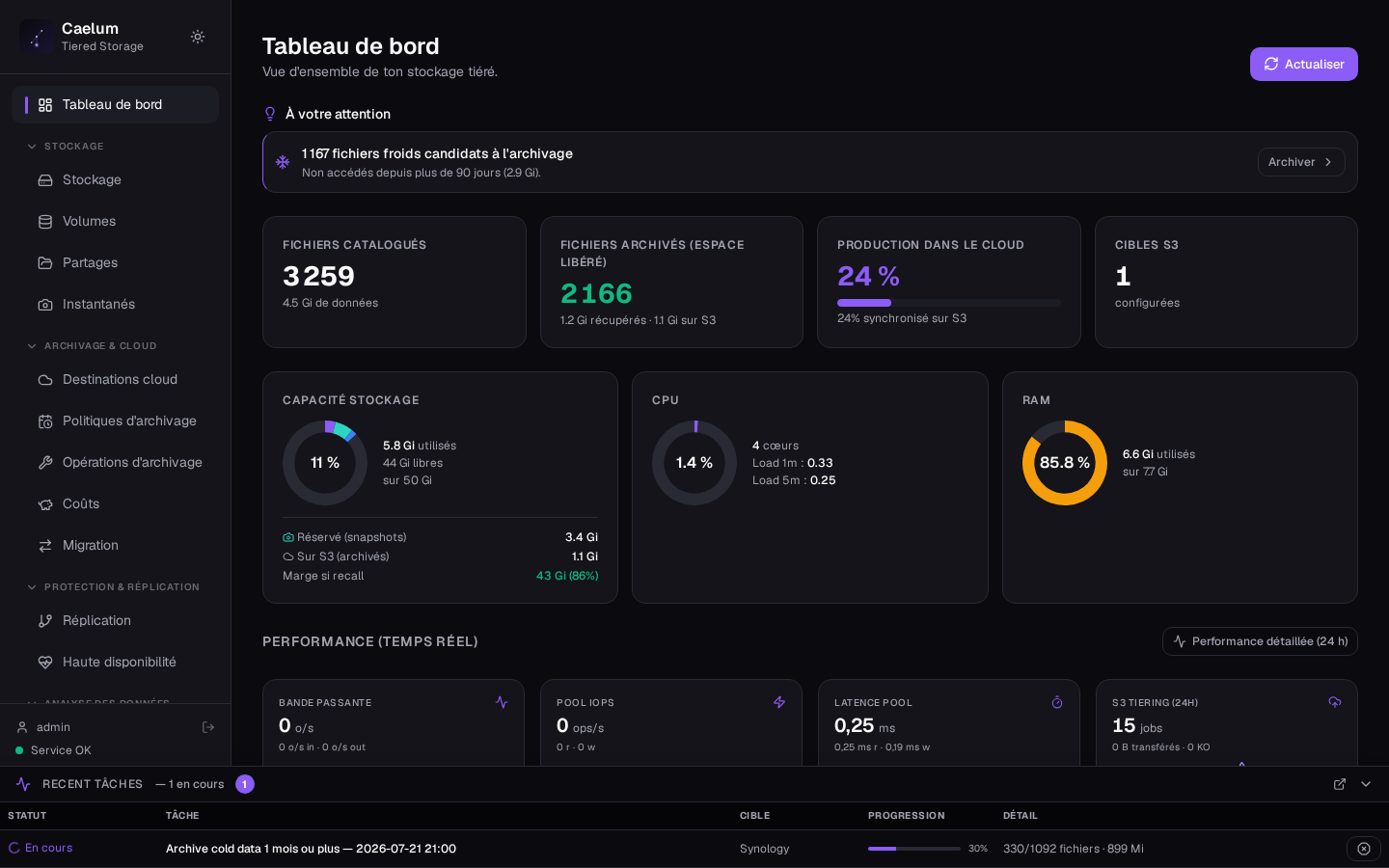
After authentication (administrator username and password), the Dashboard shows the overall health status: storage capacity and usage, recent activity, tiering and replication indicators. The service status (Service OK), the installed version and the possible availability of an update (Update → vX.Y.Z) are shown at the bottom of the sidebar, next to the language selector.
2. Storage#
Storage pools#
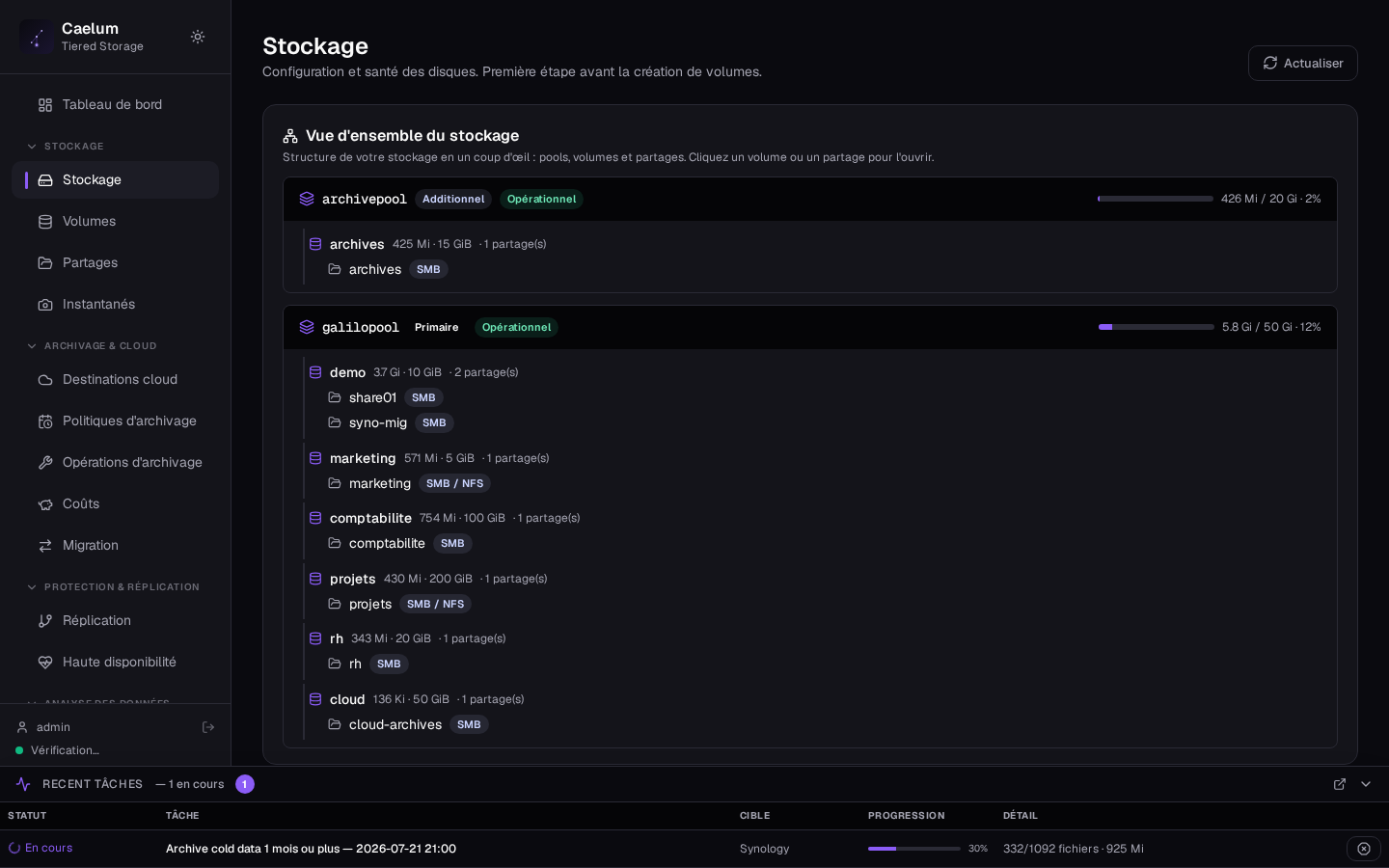
The Storage pools section presents the appliance's ZFS pools: capacity, usage, disk health and topology.
- The primary pool (
galilopool) hosts the volumes exposed under/galilo/data. Its topology (mirror / RAIDZ) is fixed at installation. - Additional pools can be created (mounted under
/galilo/pools/<name>) to place certain volumes on separate storage.
To create an additional pool: choose a name → select the disks → a protection level (Single, Mirror, RAIDZ1/2/3) → confirm the summary. You can also import an exported pool (for example from a decommissioned appliance).
Replace a disk: select the disk to replace and the new disk; the reconstruction (resilver) runs without service interruption. A multi-host protection option (MMP) is offered for pools on a shared iSCSI LUN.
A pool's topology (mirror ↔ RAIDZ) is fixed at creation: it cannot be converted in place. Size it during deployment.
In v1, additional pools are outside high availability: their volumes are standalone and do not follow an HA failover. The interface warns you when clustering.
Volumes#
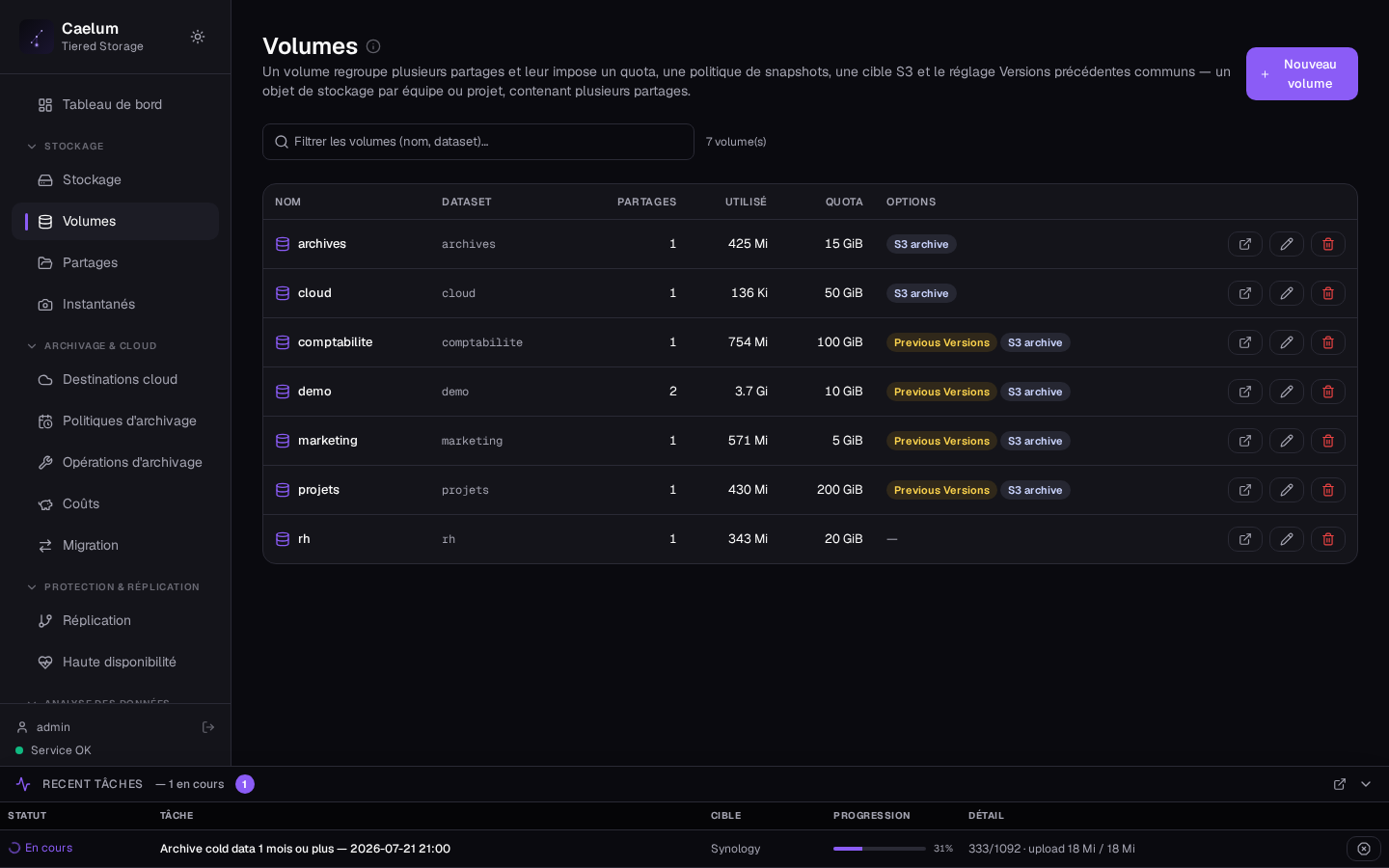
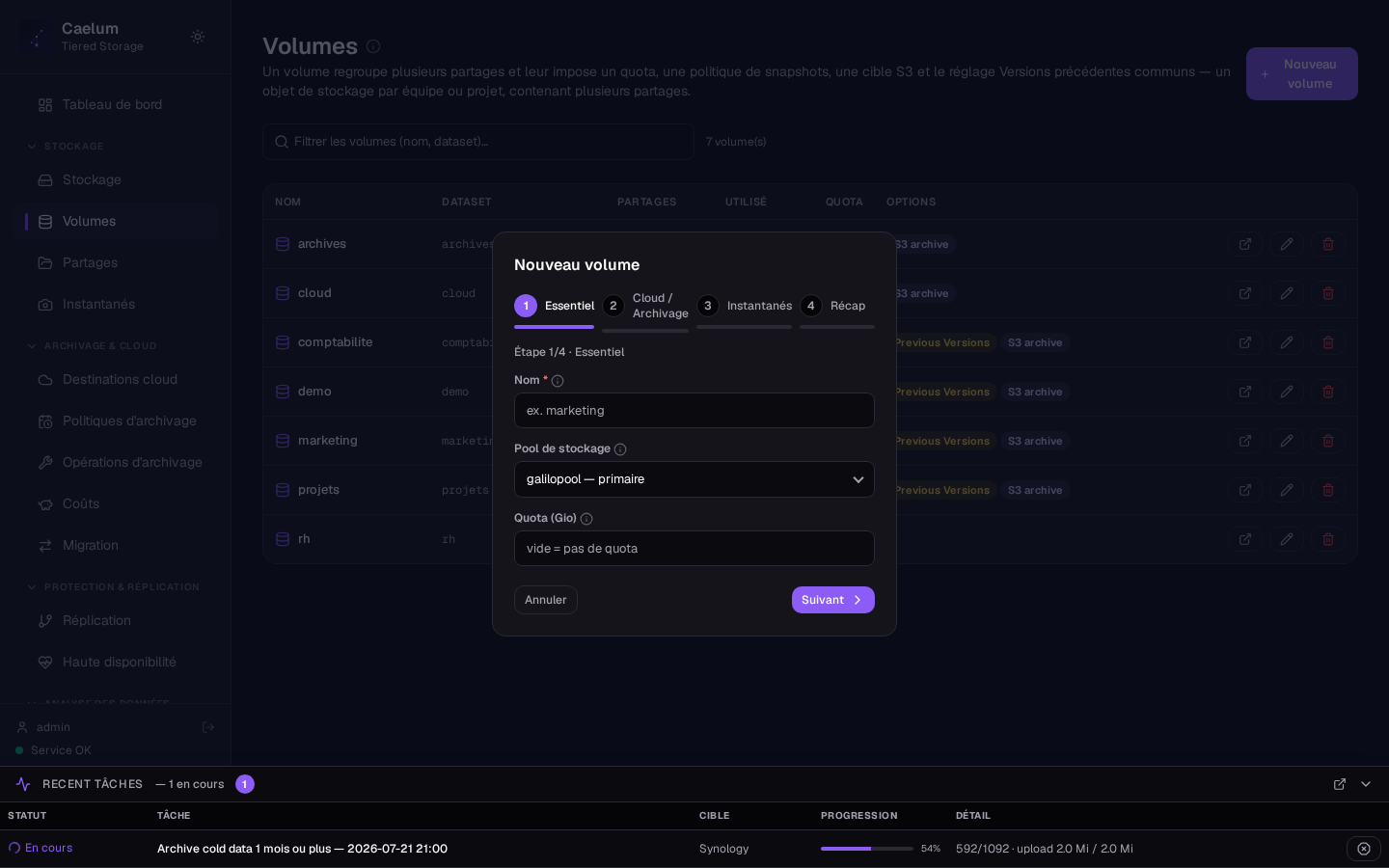
A Volume is a ZFS dataset that hosts one or more Shares. It carries the settings common to all of its shares: quota, default cloud destination, S3 retention and "Previous Versions". A volume is typically created per team or per project.
Click New Volume. The modal prompts for:
- Name: lowercase, alphanumeric, hyphen, underscore (used as the dataset name).
- Quota (GiB): maximum size of the volume and its shares. Empty = no quota.
- Pool: target pool (primary by default, or an additional pool).
- Default cloud destination (optional): destination used by the archiving of this volume's files.
- S3 retention (optional): retention period for S3 objects after deletion on the SMB side.
- Enable Previous Versions (Windows): see the dedicated section.
- Replicate to the HA peer (if HA replication is configured): includes the volume in the replication mirror.
After confirmation, the volume appears with its mount point, its number of shares and its usage relative to the quota.
SMB / NFS shares#
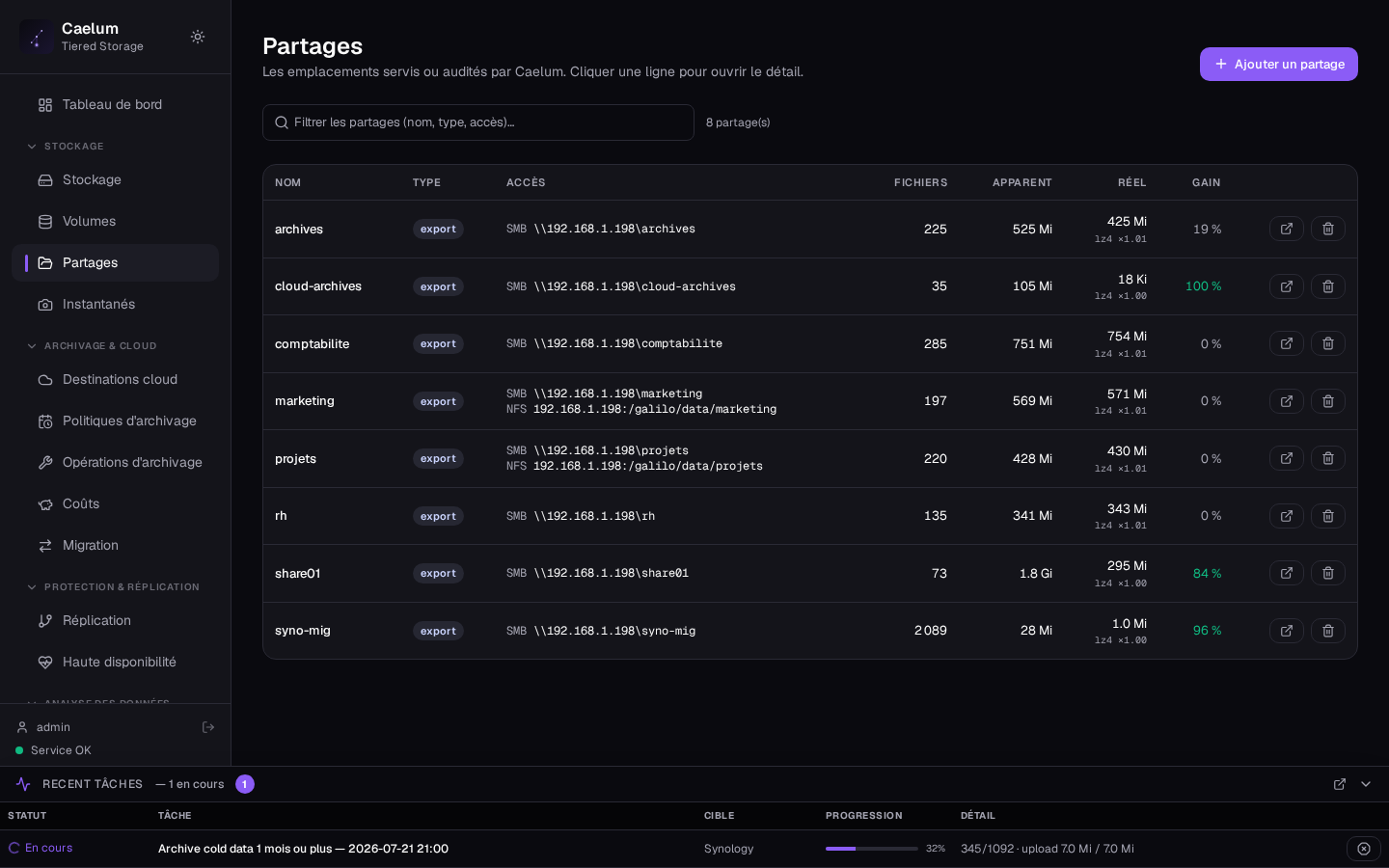
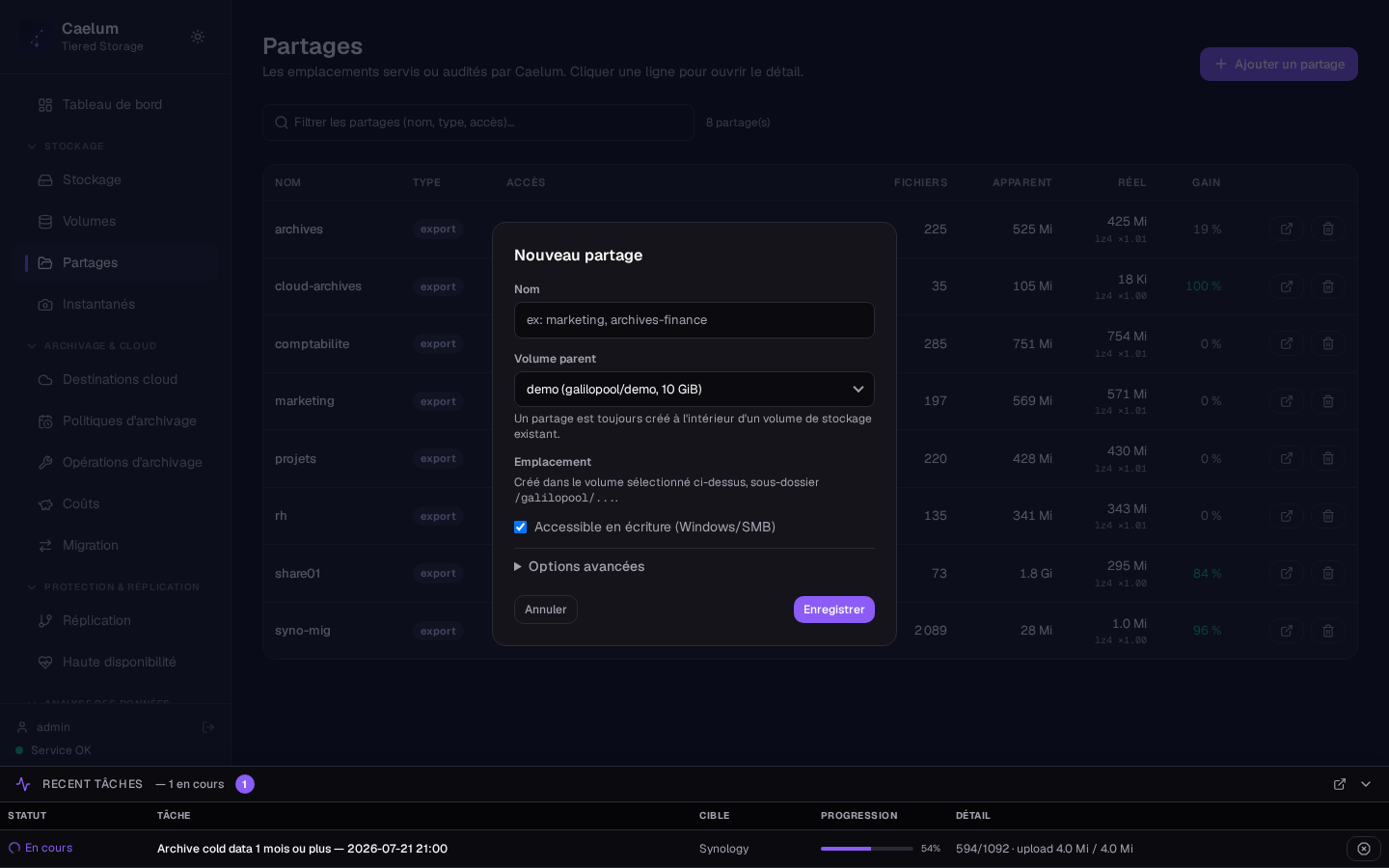
A Share is the location actually served to clients via SMB and/or NFS. It always belongs to a volume and corresponds to a subfolder of its dataset.
From a volume's card, click Add Share. The modal offers:
- Name: becomes the SMB path
\\<appliance-ip>\<name>. - Served protocols: SMB and/or NFS, with a Read-only option.
- Allowed groups / users (SMB): restriction by AD/LDAP identities. Empty = local accounts; if the appliance is joined to a domain, all domain users get access by default.
- Allowed IPs / CIDR (NFS).
- Disk quota specific to the share.
- Cloud destination and retention specific to the share.
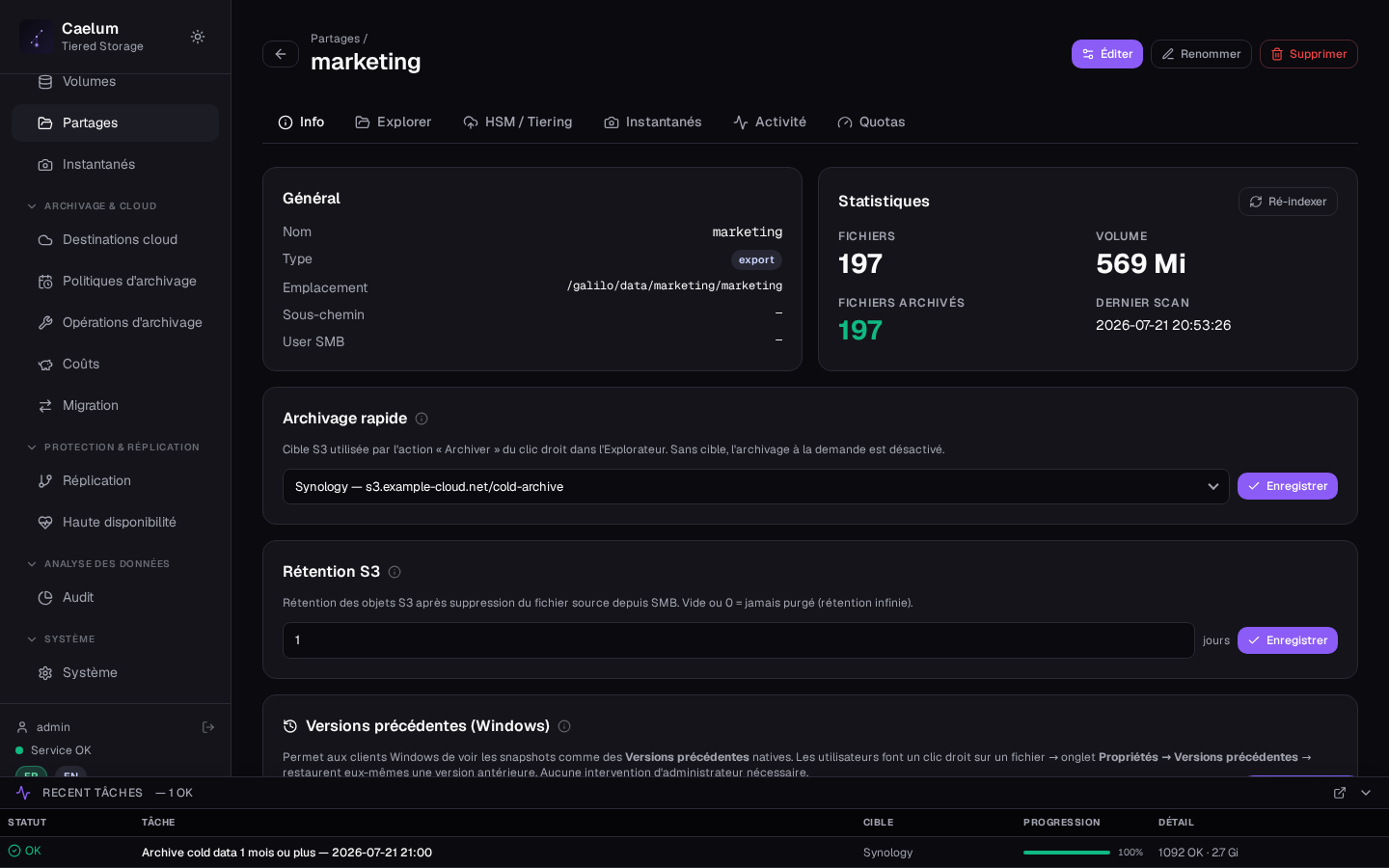
The share then appears with its type, its path, its number of files and its volumes (apparent size, actual size, savings from archiving). Clicking a row opens its detail (Info, Explorer, HSM/Tiering, Snapshots, Activity, Quotas).
Advanced SMB per share#
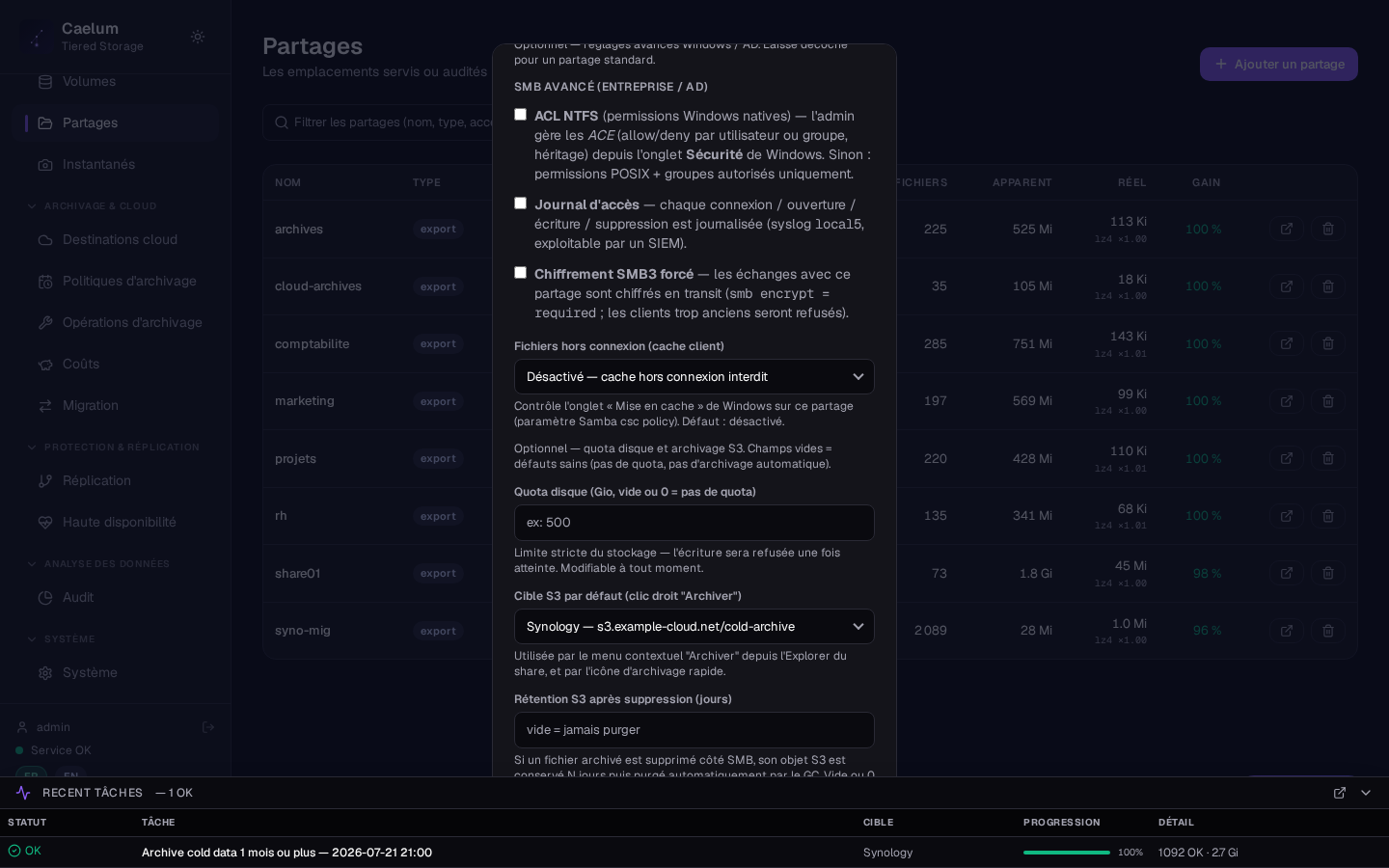
For enterprise environments (AD), each share exposes advanced options:
- NTFS ACLs: native Windows permissions, with faithful replication of the domain's security descriptors (owner, allow/deny ACE, inheritance).
- Access log: access traceability for export to a SIEM.
- Forced SMB3 encryption: enforces end-to-end encryption for the share's clients.
- Offline files (CSC client cache): Disabled, Manual, Documents or Programs.
Deleting a share offers "delete the data" and "delete the S3 copies" options, and closes active SMB sessions.
iSCSI targets and Multipath (MPIO)#
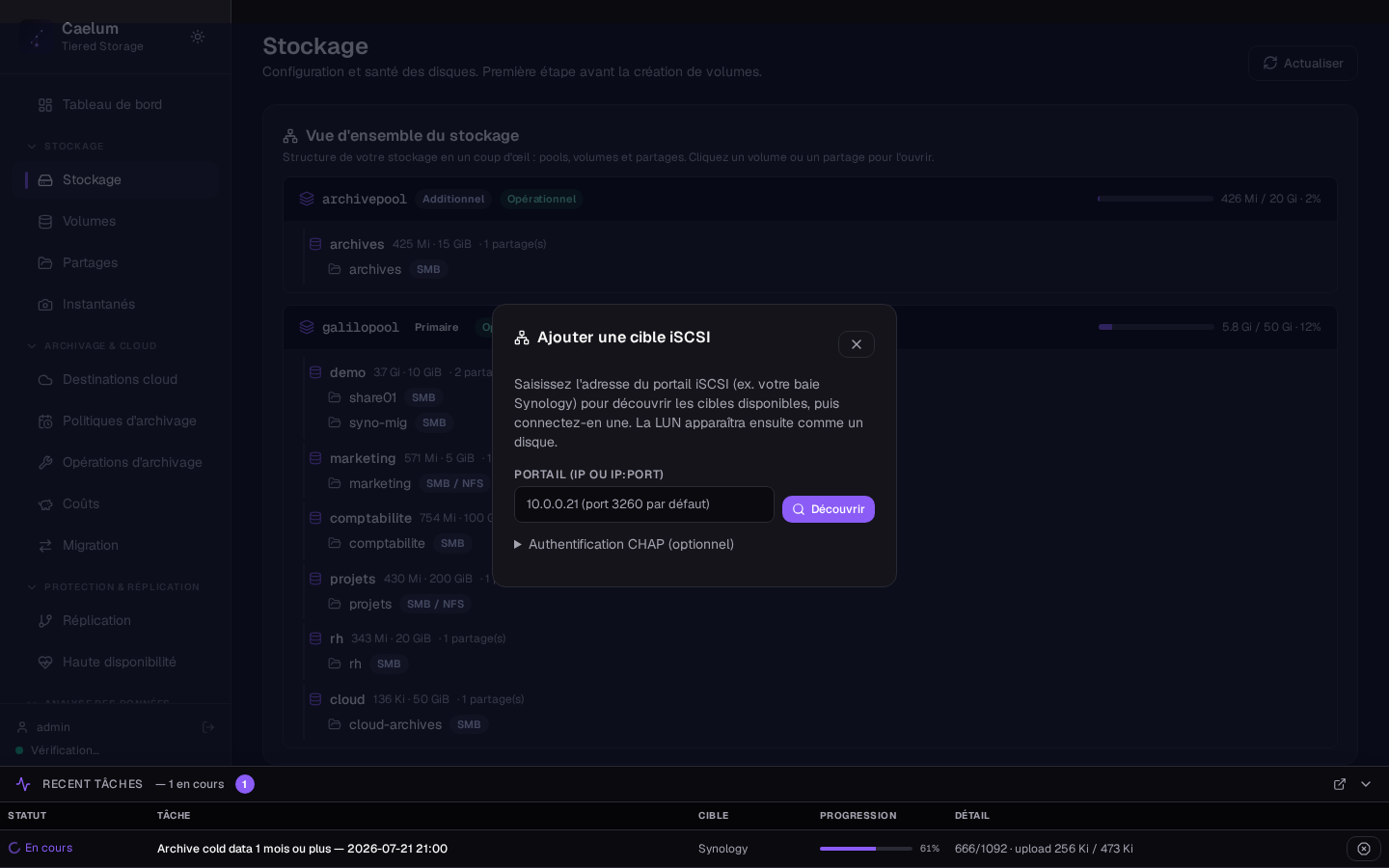
The iSCSI targets section attaches a remote iSCSI LUN (for example a Synology array) to use as a disk in a pool:
- Enter the portal (IP or
IP:port,3260by default) and run Discover. - If necessary, provide CHAP authentication (the secret is write-only, never shown again).
- Click Connect: the LUN then appears as a disk usable to create or extend a pool.
The active sessions and known targets are listed. Disconnection is refused as long as the LUN belongs to an imported pool (protection against pool loss).
Multipath (MPIO) is configured directly in the interface (editing /etc/multipath.conf), without SSH access — the appliance being hardened.
3. Archiving & Cloud#
Cloud destinations#
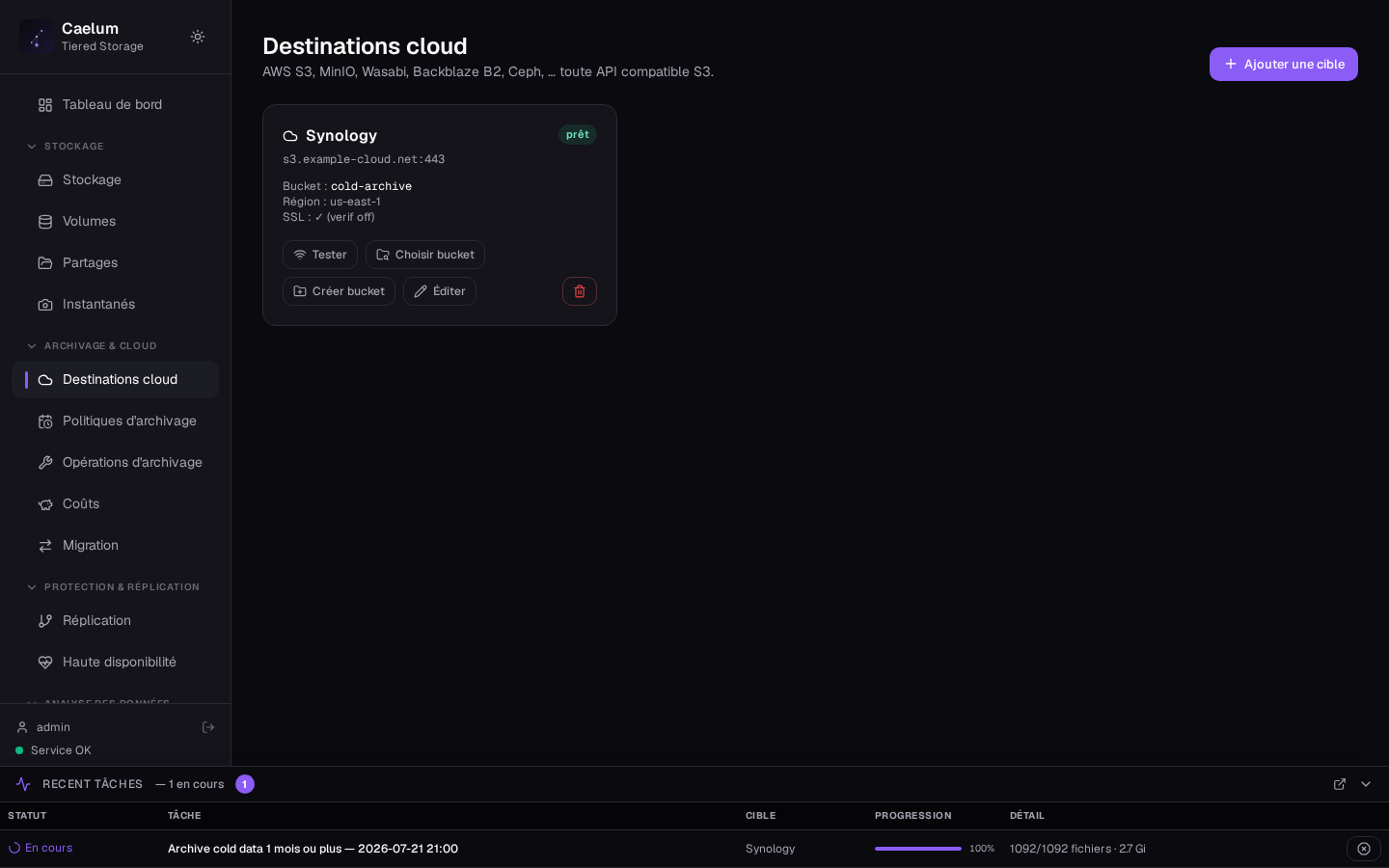
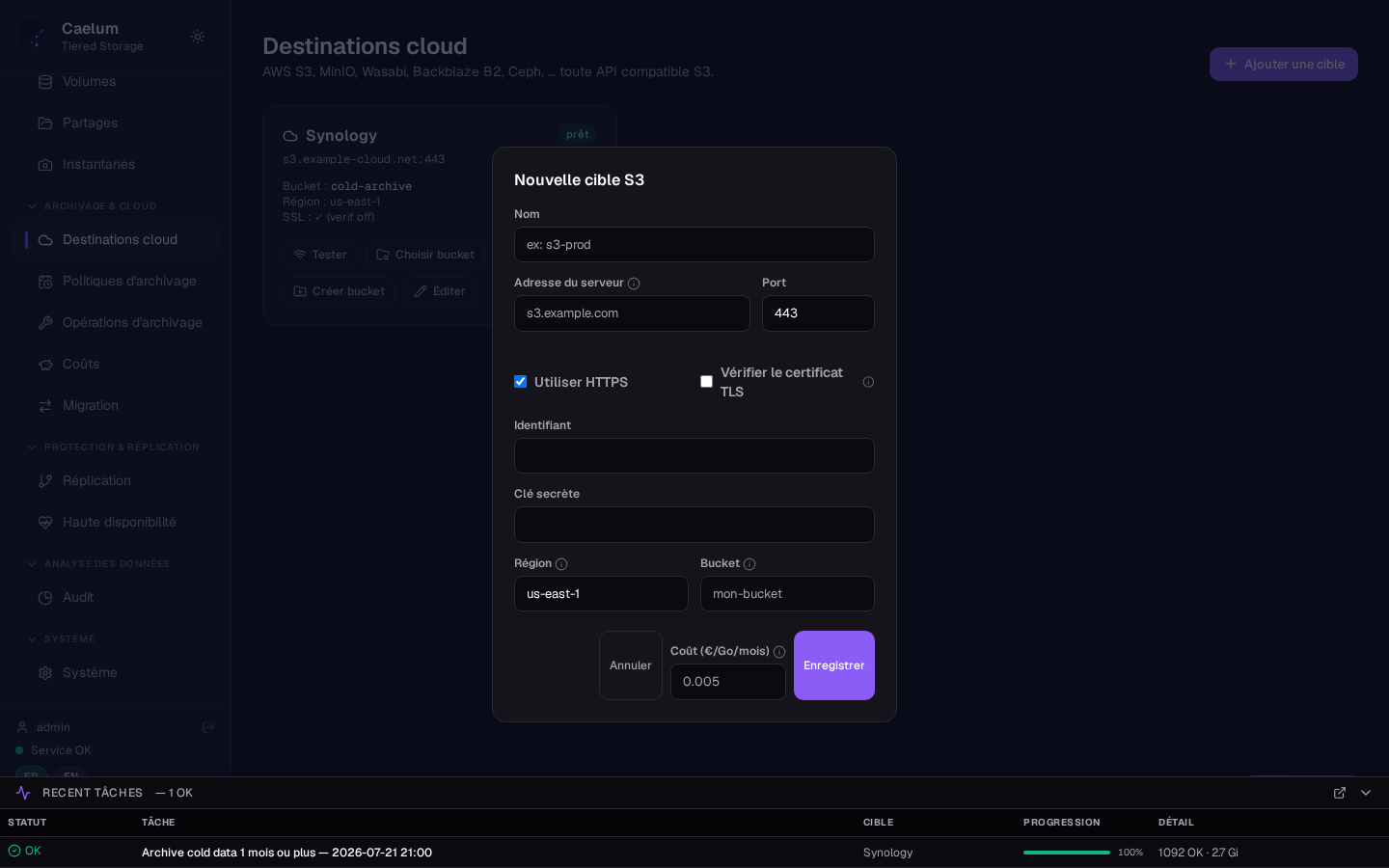
The Cloud destinations view declares the object backends to which Caelum archives cold files: AWS S3, MinIO, Wasabi, Backblaze B2, Ceph and any S3-compatible API.
To add a destination, enter:
- Name: destination label.
- Server address and Port: S3 host (e.g.
s3.eu-west-3.amazonaws.com). - HTTPS and Verify TLS certificate: leave enabled in production.
- Access key / Secret key: the secret is never shown again after saving.
- Region and Bucket: the bucket must exist (it can be created/chosen from the interface).
- Cost (€/GB/month): used for the Costs view.
Check that the credentials have the right to read, write and delete in the bucket: a misconfigured destination results in failed archiving operations.
Archive policies#
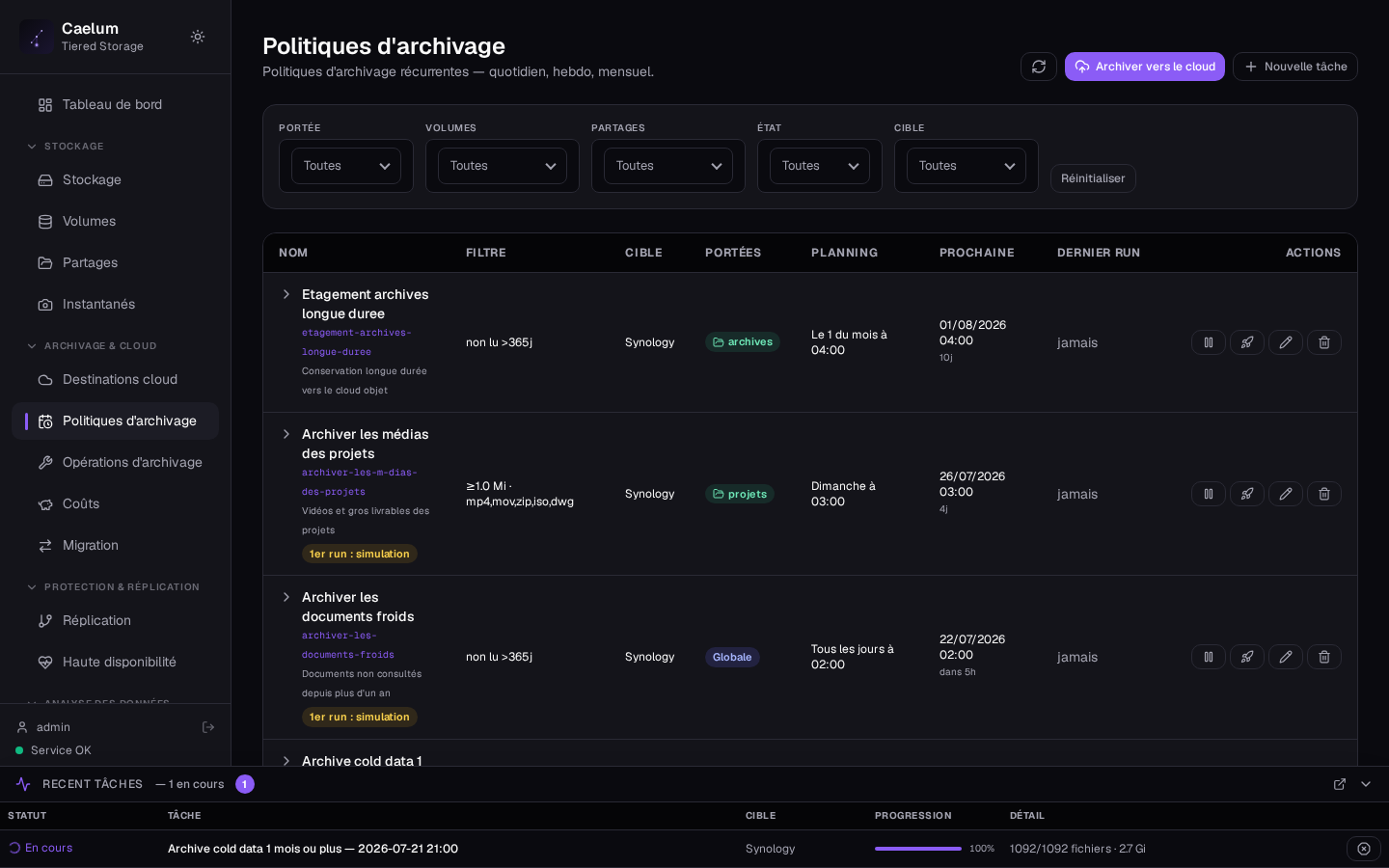
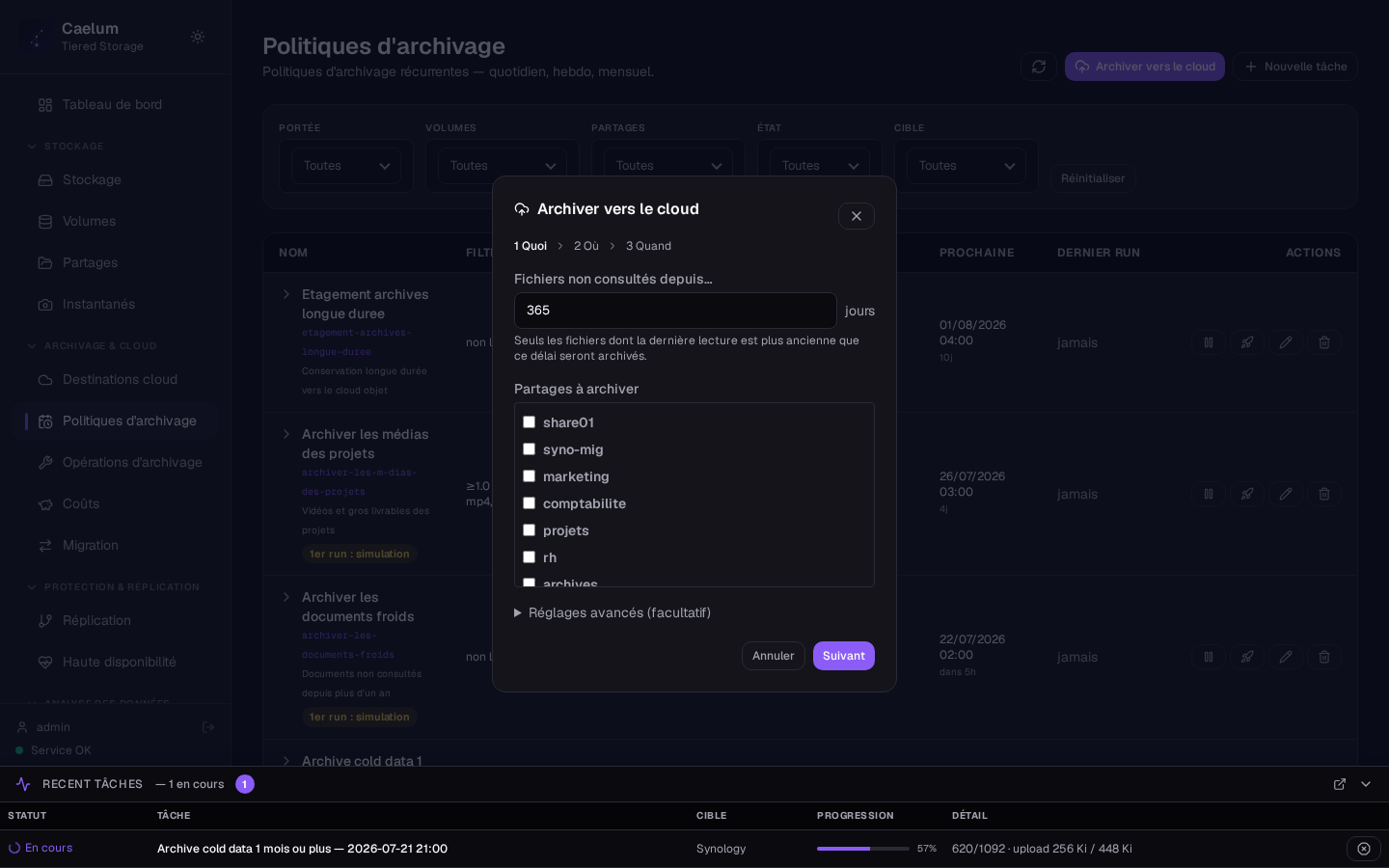
The Archive policies view (merging the former "Rules" and "Tasks") defines named, reusable tasks. Each task combines a filter (eligibility criteria), an action, a cloud destination, a schedule and a scope:
- Scope: global, per volume or per share (scopes stack, with deduplication per destination so the same file is not archived twice).
- Schedule: daily, weekly or monthly.
The "Archive to the cloud" assistant guides creation in 4 steps: What (criteria) → Where (destination) → When (schedule) → Scope (with guardrails).
The first run of a new task is forced as a simulation (dry-run): Caelum shows what would be archived, to validate before the first real run.
The HSM / Tiering tab of a share's detail is now read-only: archiving is driven through Archive policies and right-clicking in File Explorer.
Archiving operations#
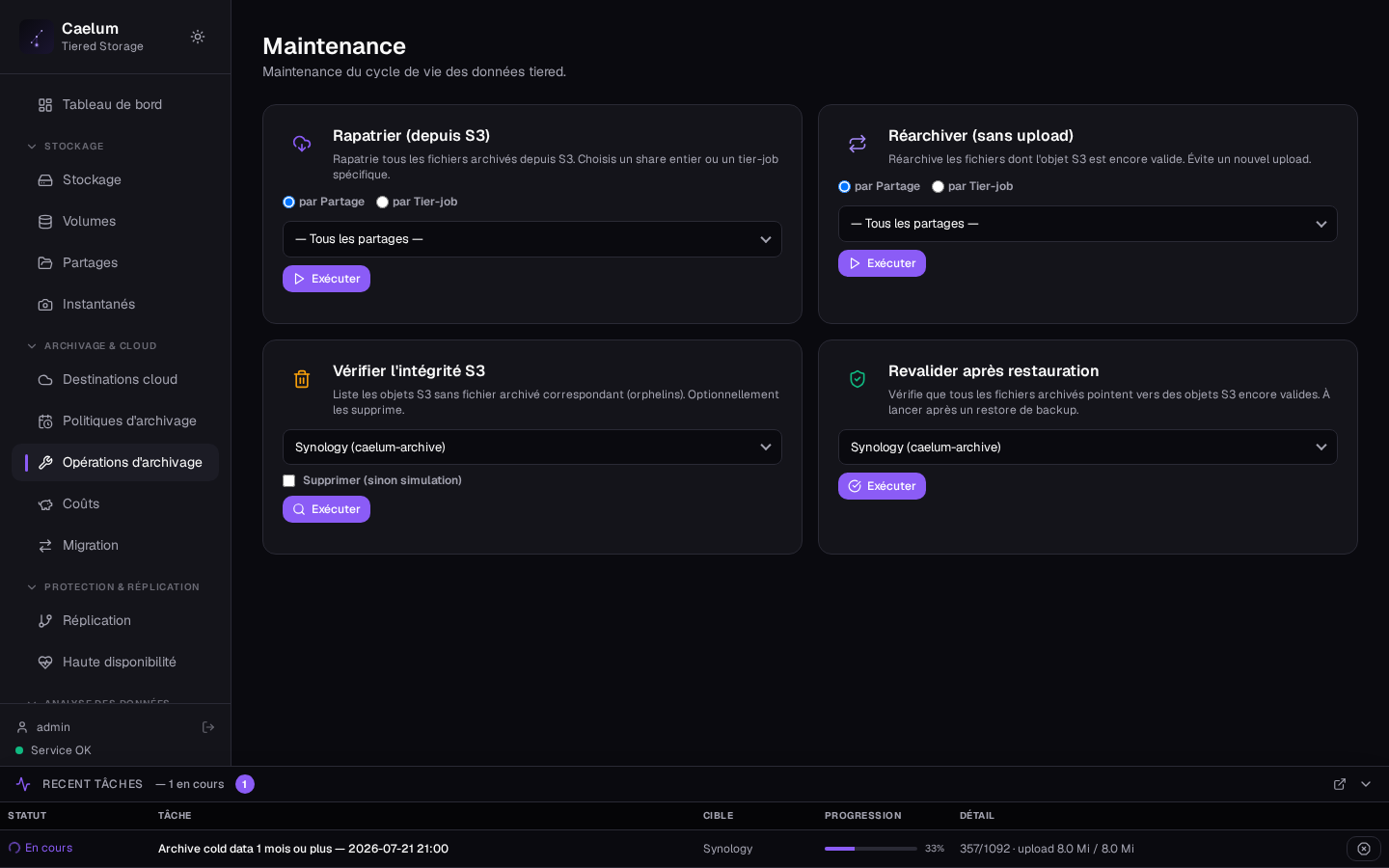
The archiving operations list the ongoing and recent tiering tasks (upload, stubbing, verification), with their status and progress.
Tiering vocabulary:
- Archive (migrate): copy a cold file to the cloud then replace it with a stub (offline file, near-zero local footprint, marked OFFLINE on Windows with a cloud badge).
- Recall: bring the content back from the cloud when the file is opened.
- Re-archive: re-stub a recalled file that has become cold again.
A stub remains visible and clickable. When opened, the content is recalled transparently. For large media files, partial range streaming over SMB allows reading without recalling everything (a "▶ Play" button in the explorer for audio/video).
Partial streaming applies to the SMB protocol. Over NFS, opening a stub triggers a full recall.
S3 Cache mode#
A share can operate in S3 Cache mode (NAS backed by the cloud): the S3 bucket is the reference and the local disk only serves as a buffer for recently used files (with a grace period before eviction and a usage cap). This is the right mode when your data already lives in the object cloud and you want fast SMB/NFS access to it without recalling everything.
4. Protection & Replication#
Snapshots#
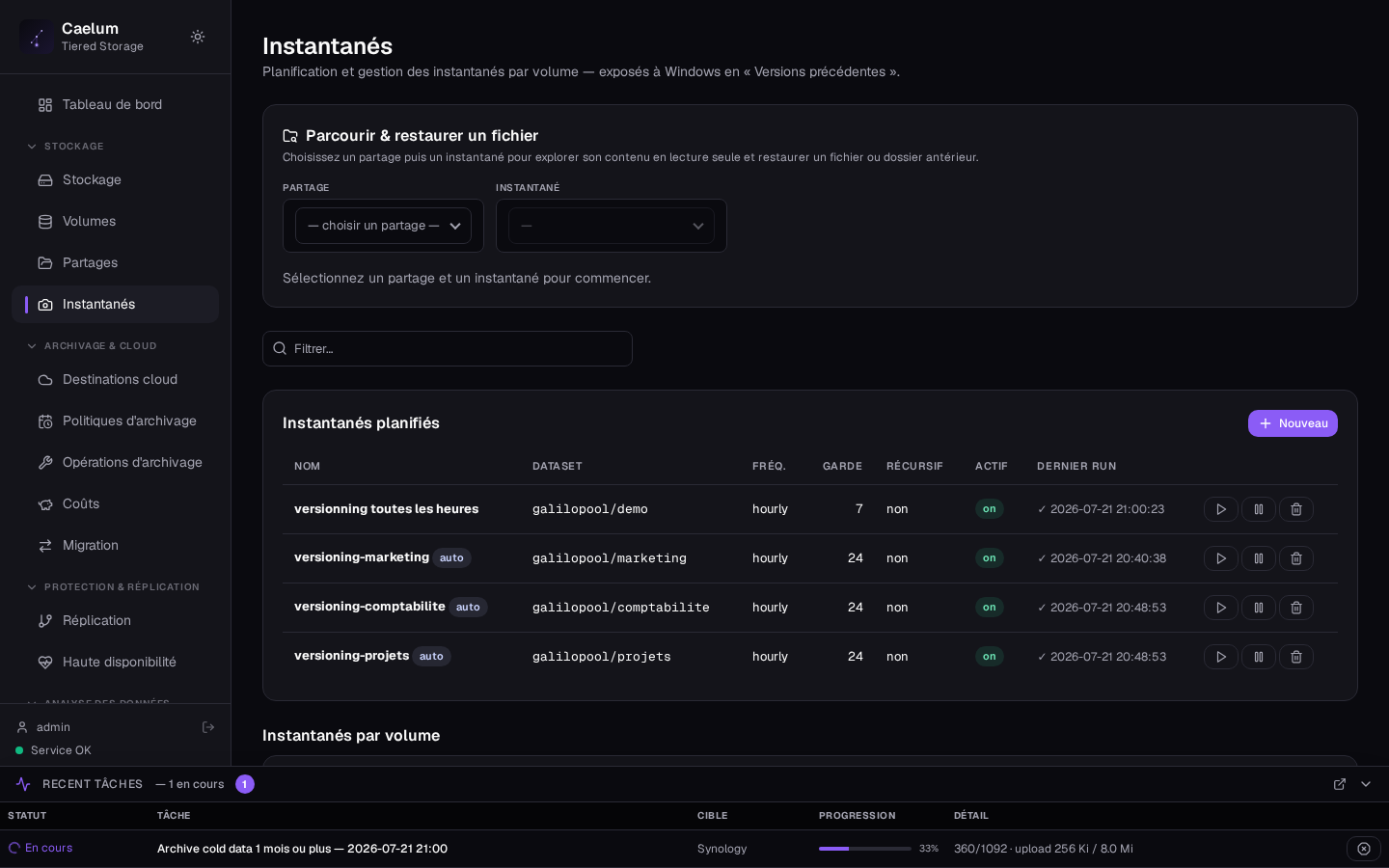
The Snapshots view manages ZFS snapshot schedules per volume. A volume snapshot covers all of its shares; it is near-instant and only occupies the space of later changes.
Click New: schedule name, target volume, frequency (hourly, daily, weekly…), number of snapshots to keep (rotation), Recursive option and activation. The Previous Versions compatible option names the snapshots in the format expected by Windows (GMT-*).
Previous Versions (Windows)#
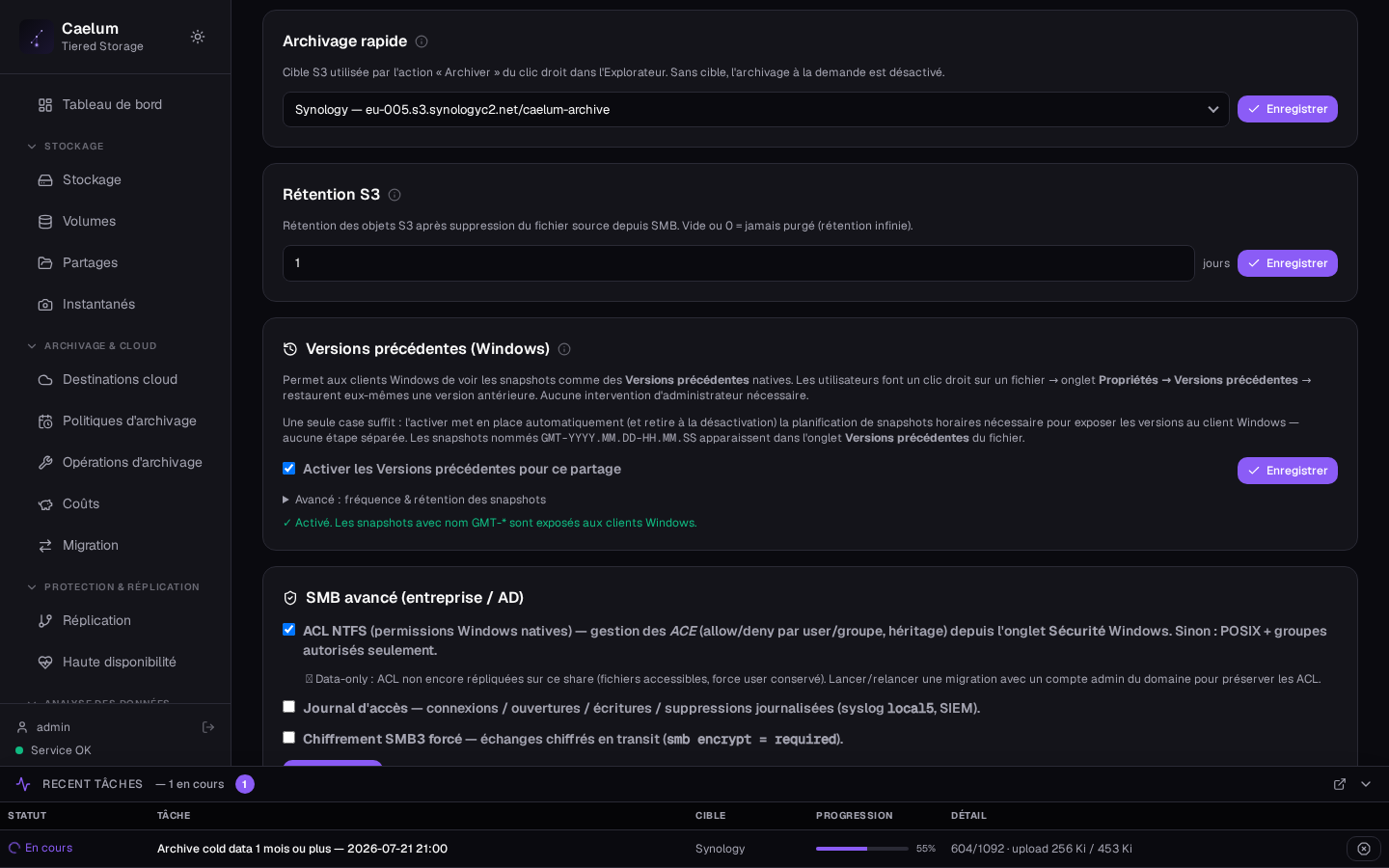
Windows exposure of previous versions is now handled by a single checkbox — on a volume or a share: "Enable Previous Versions".
Enabling it provisions the whole chain (Samba exposure + auto-managed snapshot schedule); disabling it cleans it up. The advanced options (hourly/daily/weekly frequency and "keep N snapshots", default 24) are collapsed. An inconsistency guardrail flags an incomplete configuration, with a one-click fix.
On the Windows side: right-click a file or folder → Properties → Previous Versions tab → restore or open.
The schedule always targets the parent volume's dataset (a share being a subfolder). Enabling the option on a share therefore enables protection at its volume level.
Replication#
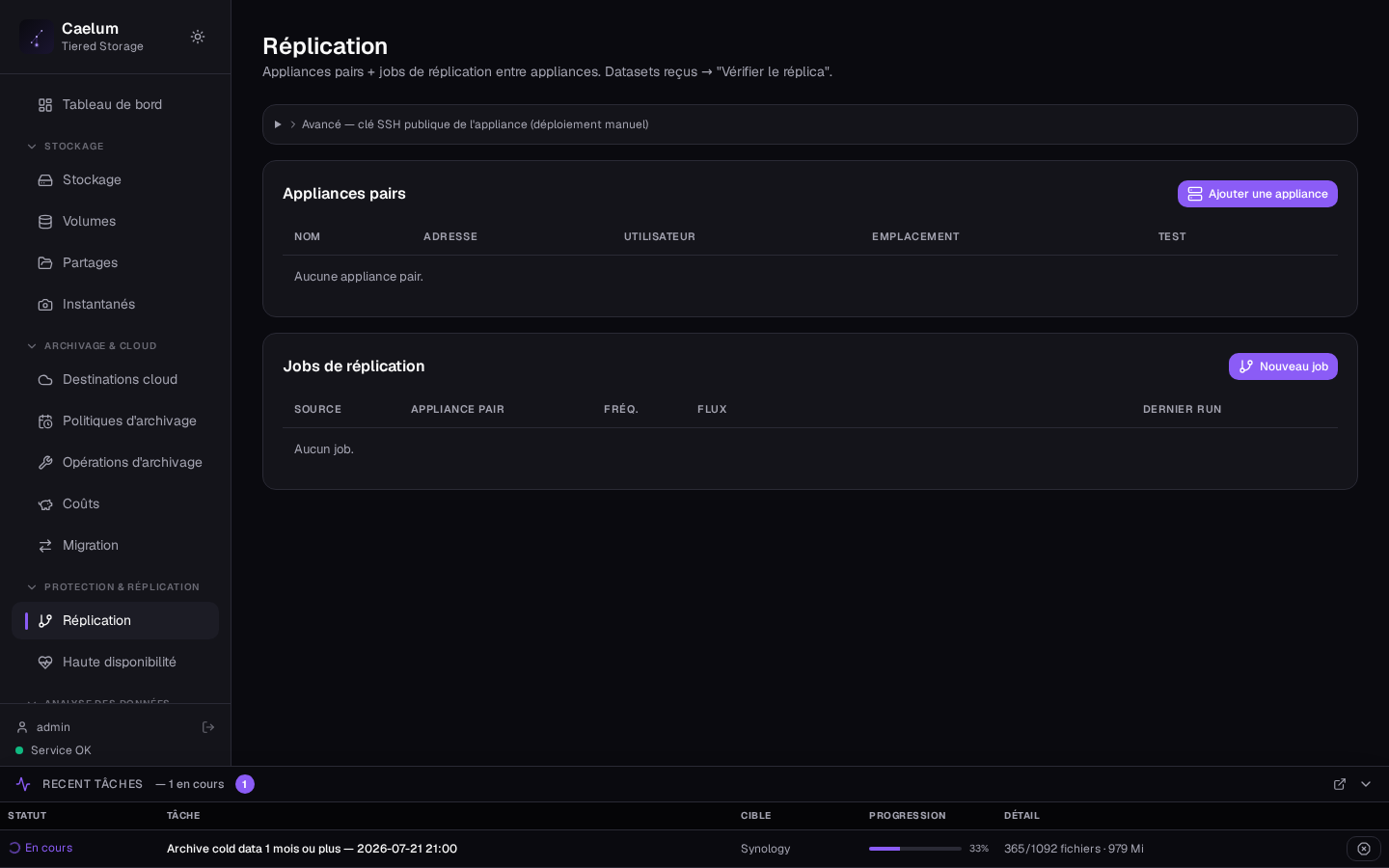
The Replication view copies your volumes to a second Caelum appliance (remote site) for disaster recovery. It creates per-volume jobs, with automatic SSH pairing and an HTTPS admin session (443) to authorise the key.
A received dataset can be tested via "Verify the replica" (read-only clone of the latest snapshot, attached to a dedicated DR volume) before a possible failover.
The full detail (pairing, frequencies including continuous mode, ACL fidelity, DR) is in the replication guide.
High availability#
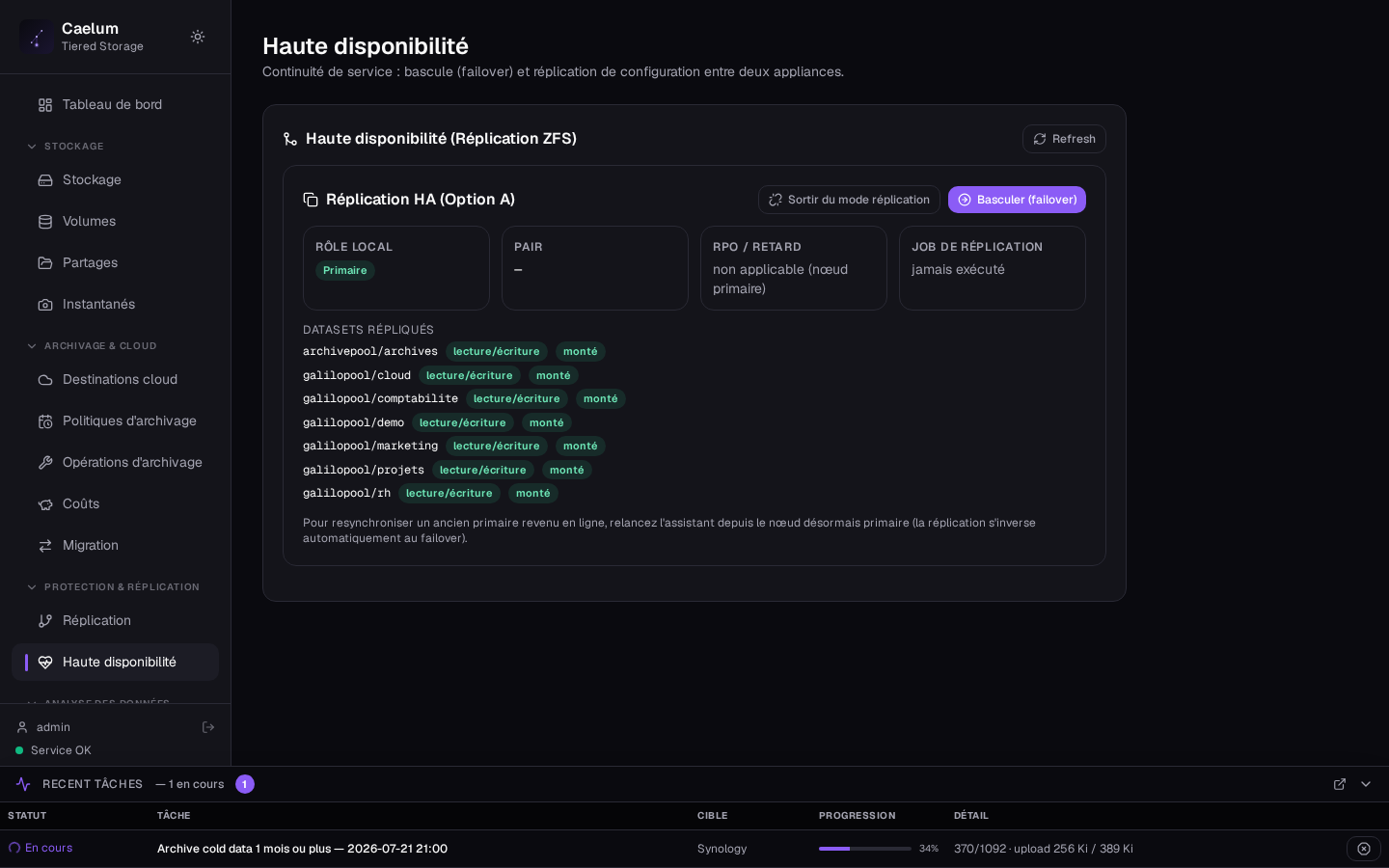
The High availability view puts two appliances in a relay. The "Choose the HA mode" screen offers two distinct modes:
- Shared storage: a single ZFS pool on a LUN/SAN accessible to both nodes; Pacemaker imports/exports the pool on the active node. Transparent failover, zero RPO, but requires a SAN/iSCSI/FC and fencing (STONITH) in production. The SMB/NFS services and the VIP are managed by the cluster; the configuration can follow the pool.
- Replication ("Option A"): each appliance keeps its local pool; an asynchronous ZFS replication keeps the passive one as a read-only mirror. RPO = replication interval, manual failover (a "Fail over" button). Detail in the replication guide.
A shared-disk detection assistant compares the physical identifiers (WWN/serial) of both nodes' disks and recommends the appropriate mode (shared if the same LUN is seen on both sides, replication otherwise).
Automatic detection only works if the LUN exposes a stable WWN or serial; purely virtual disks without a reliable identifier cannot be auto-detected. In shared-storage mode, fencing is required in production to avoid split-brain — the lab/PoC setting is not a production deployment.
5. Data analysis#
Audit#
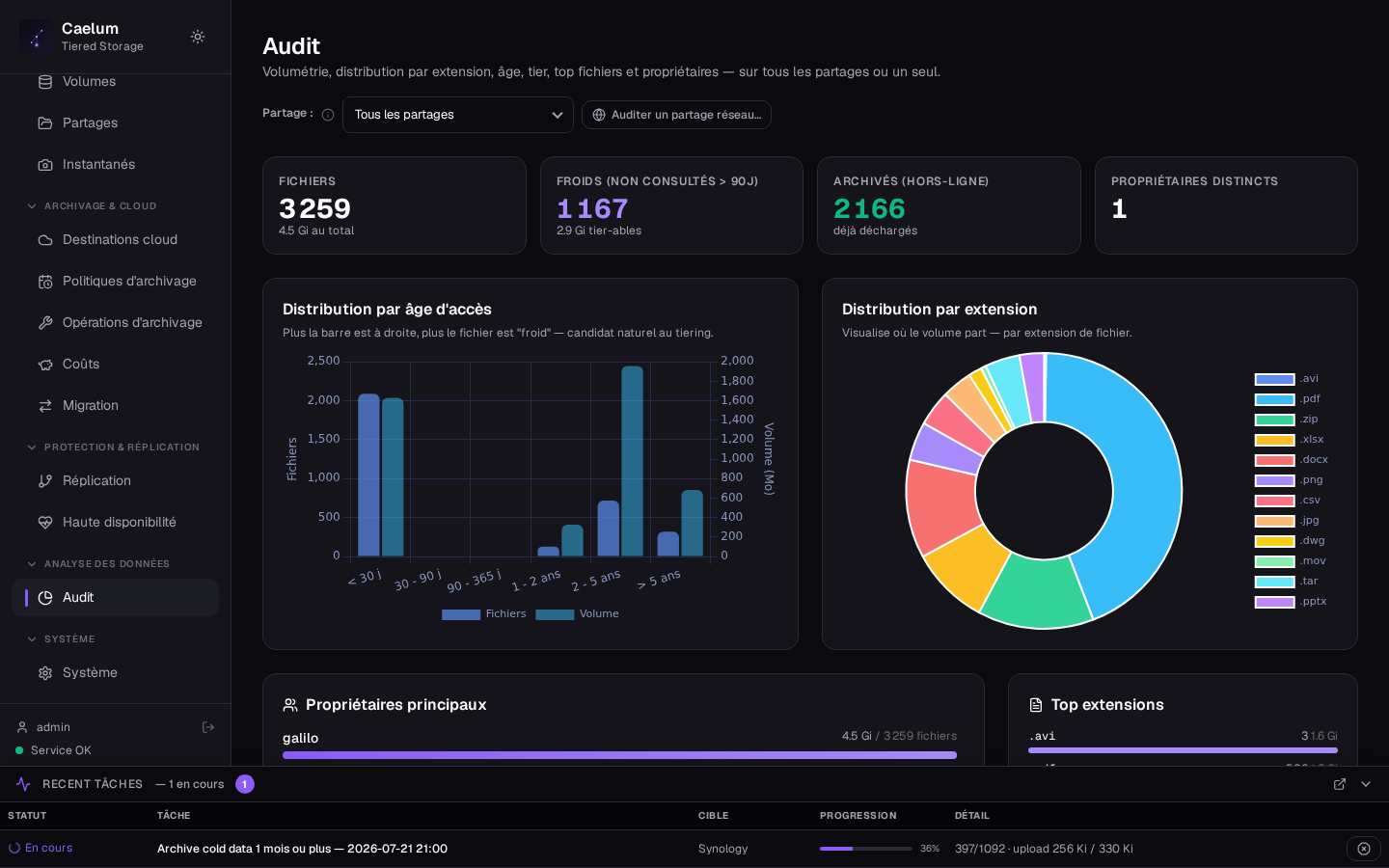
The Audit view presents the inventory and analysis of scanned data: distribution of files by age, by type, volume, archiving candidates. It serves to prepare a tiering policy or a migration.
Migration#
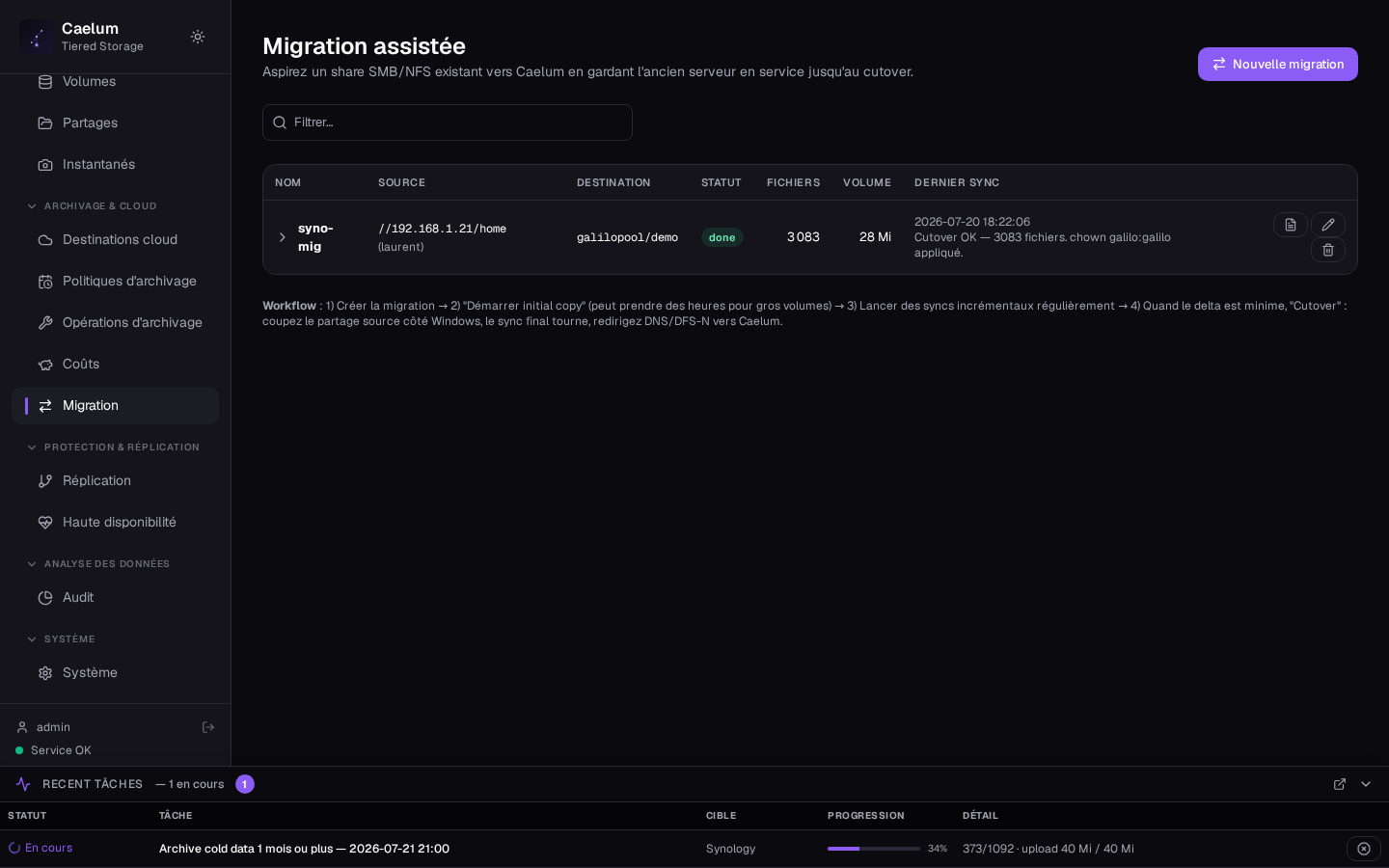
The Migration view drives the assistant for recovering a source NAS to Caelum (source audit, copy, cutover). The destination share is created in a target volume at cutover time.
Costs#
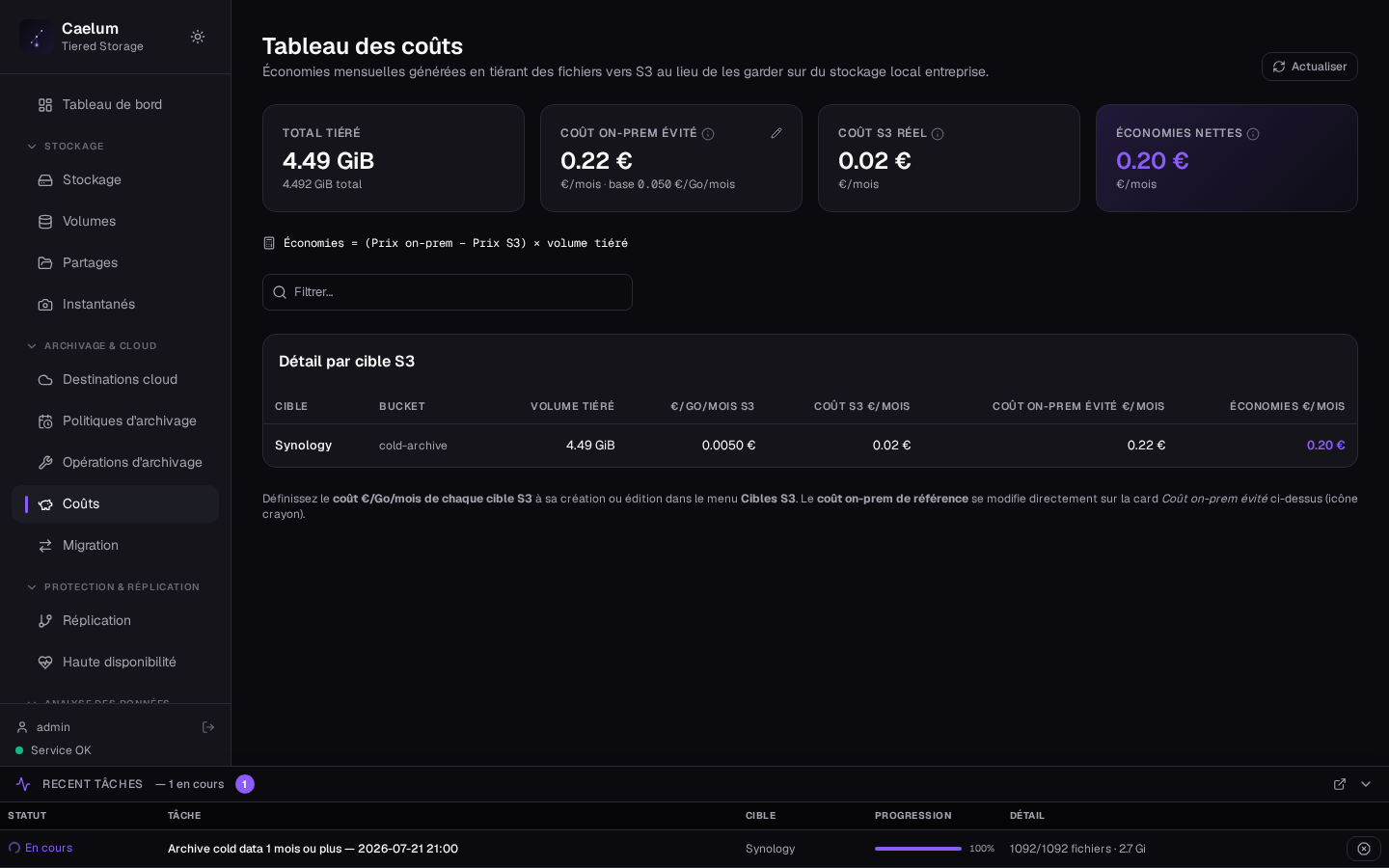
The Costs view calculates the savings achieved through S3 archiving: local vs archived volume and monthly cost per destination, based on the €/GB/month declared on each cloud destination.
6. System#
Active Directory domain#
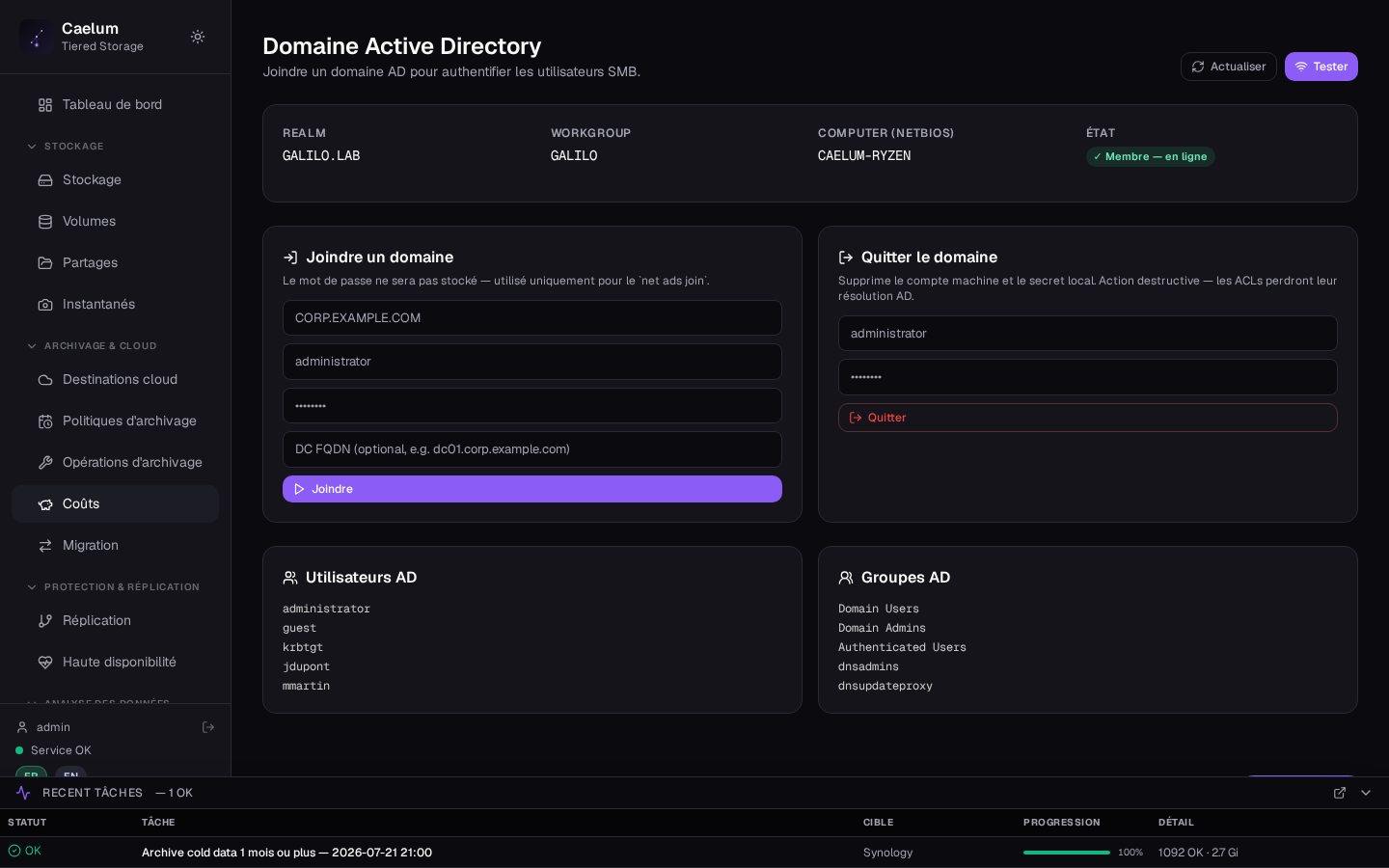
To authenticate SMB users via a corporate directory, Caelum can join an Active Directory domain (Kerberos). Enter the Realm (e.g. CORP.EXAMPLE.COM), a domain administrator account and its password (used only for the join, not stored), and optionally the domain controller FQDN, then Join. Once joined, AD users and groups become usable in share access restrictions.
The Leave the domain section removes the machine account and the local secret: AD-based ACLs will no longer resolve.
LDAP#
In the absence of Active Directory, two SMB identity options are available:
- Embedded local LDAP: an internal directory (
slapd) to manage SMB users without external infrastructure. - External LDAP (client): connection to an existing directory (OpenLDAP, 389DS, FreeIPA…). Enter Host, Port, Base DN, Bind DN and the bind password; TLS (LDAPS/StartTLS) available.
System NSS integration (OS resolution via nslcd) of external LDAP remains a manual step.
Accounts (administrators and SMB)#
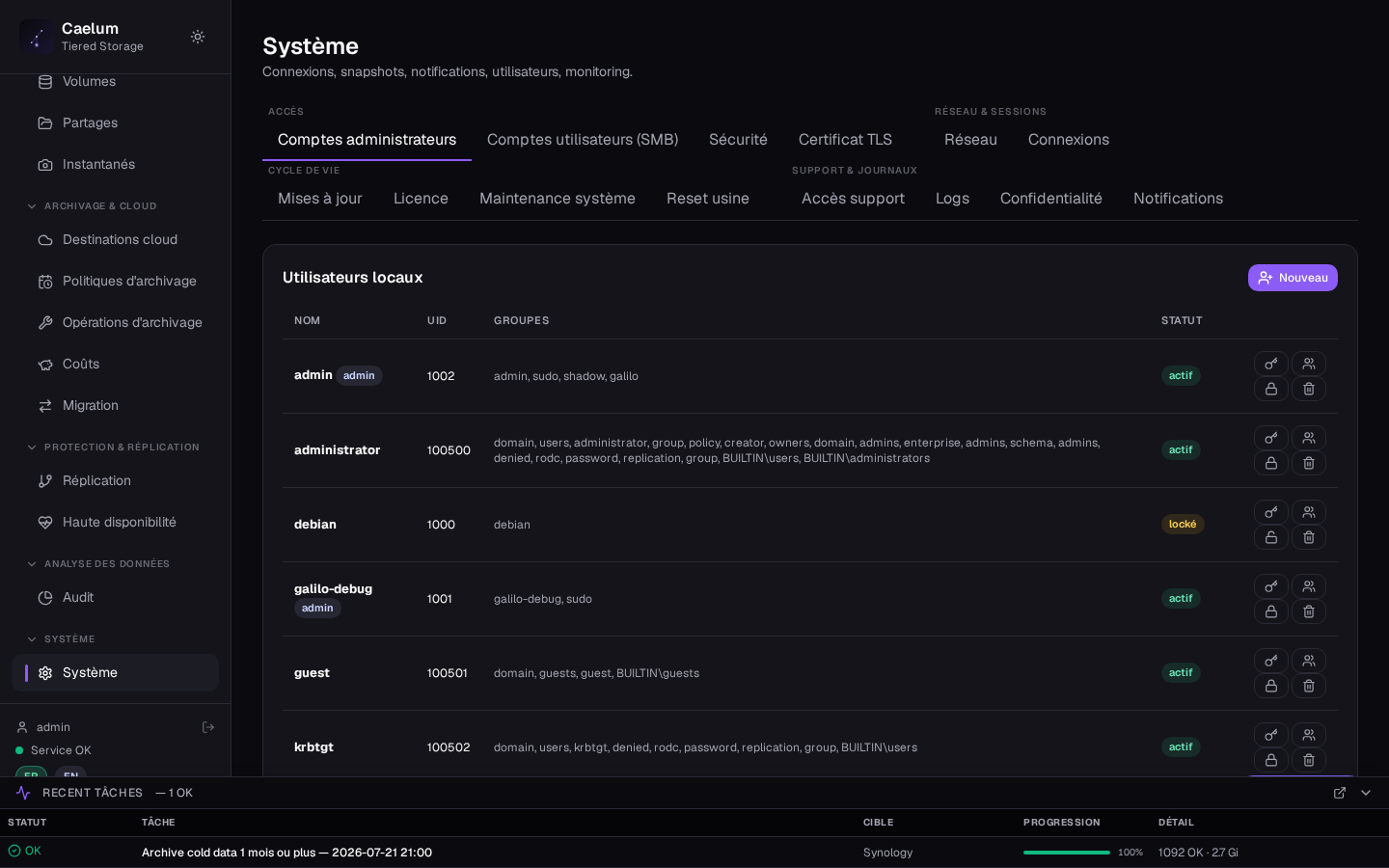
- Administrator accounts: administration interface users and global quotas per user/group applied across all shares.
- User accounts (SMB): brings together the three identity sources serving SMB authentication (Active Directory, local LDAP, external LDAP).
Network and role-based networks#
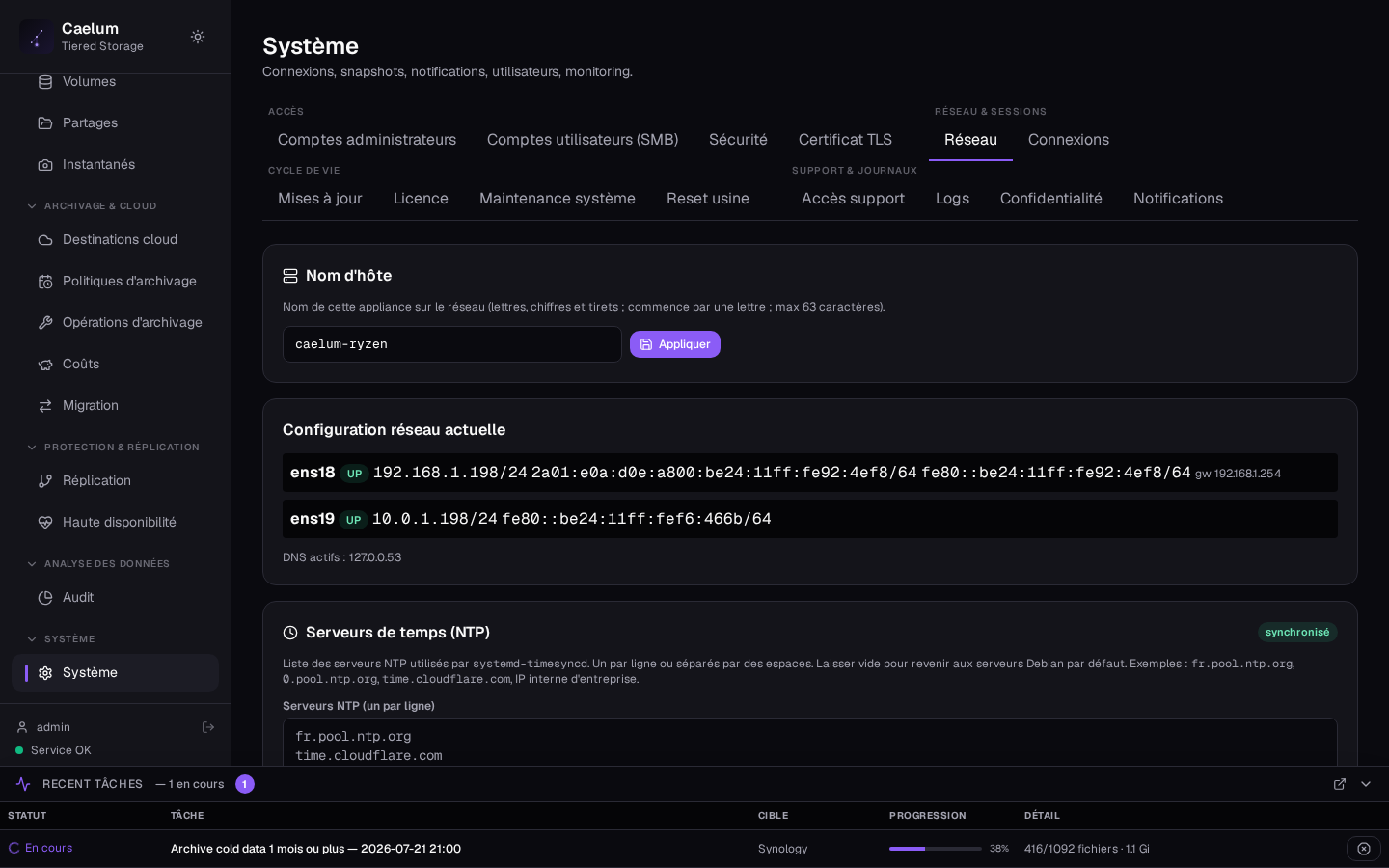
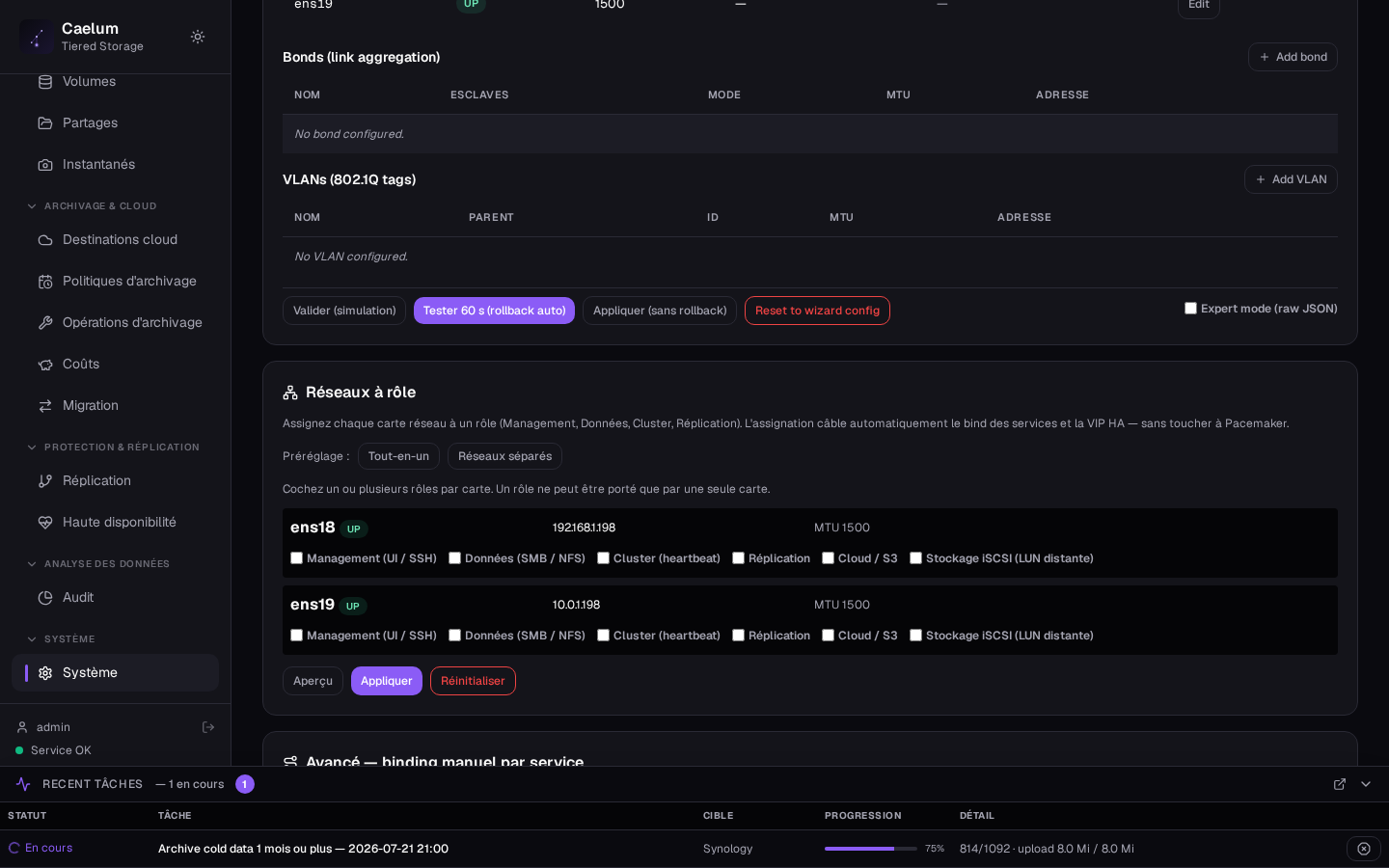
The Network tab displays and modifies the current configuration: NTP servers, addressing mode (DHCP or static) per interface, and advanced configuration (LACP 802.3ad, VLAN 802.1Q, multi-IP).
Role-based networks let you assign each adapter to a role: Management (UI/SSH), Data (SMB/NFS), Cluster (HA heartbeat), Replication, Cloud/S3 and iSCSI storage. All-in-one and Separate networks presets are offered. The assignment wires the services' binding and the HA VIP without directly touching Pacemaker.
Any risky network change is protected by a "Test for 60 s (auto rollback)" button: the new configuration is applied then restored automatically if you do not confirm within the delay (anti-lockout). Furthermore, if the management IP were to disappear, the listener reopens on all networks to keep the appliance reachable (alert banner + "Restore isolation" button).
Network discovery#
The appliance appears automatically in the client workstations' network neighborhood — in the Windows 10/11 "Network" view and in the macOS Finder (NAS icon) — via WS-Discovery and mDNS/Bonjour. No configuration is needed: it works from commissioning.
Security#
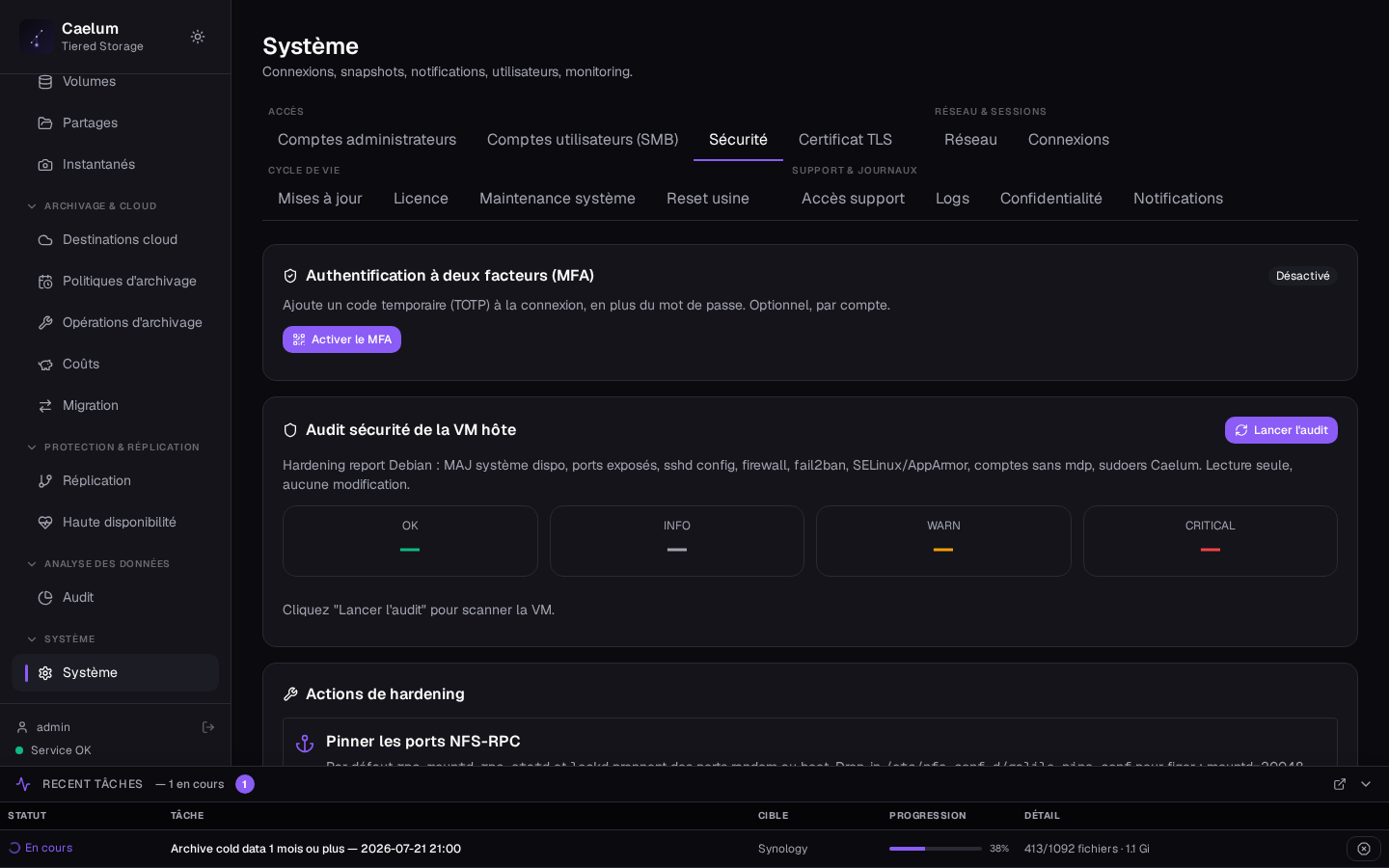
The Security tab provides a read-only hardening audit of the host VM (system updates, exposed ports, SSH configuration, firewall, fail2ban, passwordless accounts, sudoers). Guided hardening actions are offered (pinning the NFS RPC ports, enabling the firewall with the Caelum rule set) while preserving the current SSH session.
TLS certificate#
The interface is served over HTTPS. By default a self-signed certificate is used (hence the browser warning). You can import a certificate signed by your authority (internal CA / AD Certificate Services) or generate a signing request (CSR) from the appliance — the private key then never leaves the machine.
Privacy / Telemetry#
Caelum can send an anonymous daily ping (version, hypervisor, license type, number of shares, total volume). No file name or user data leaves the appliance. The option is disabled by default; including the hostname is optional.
License#
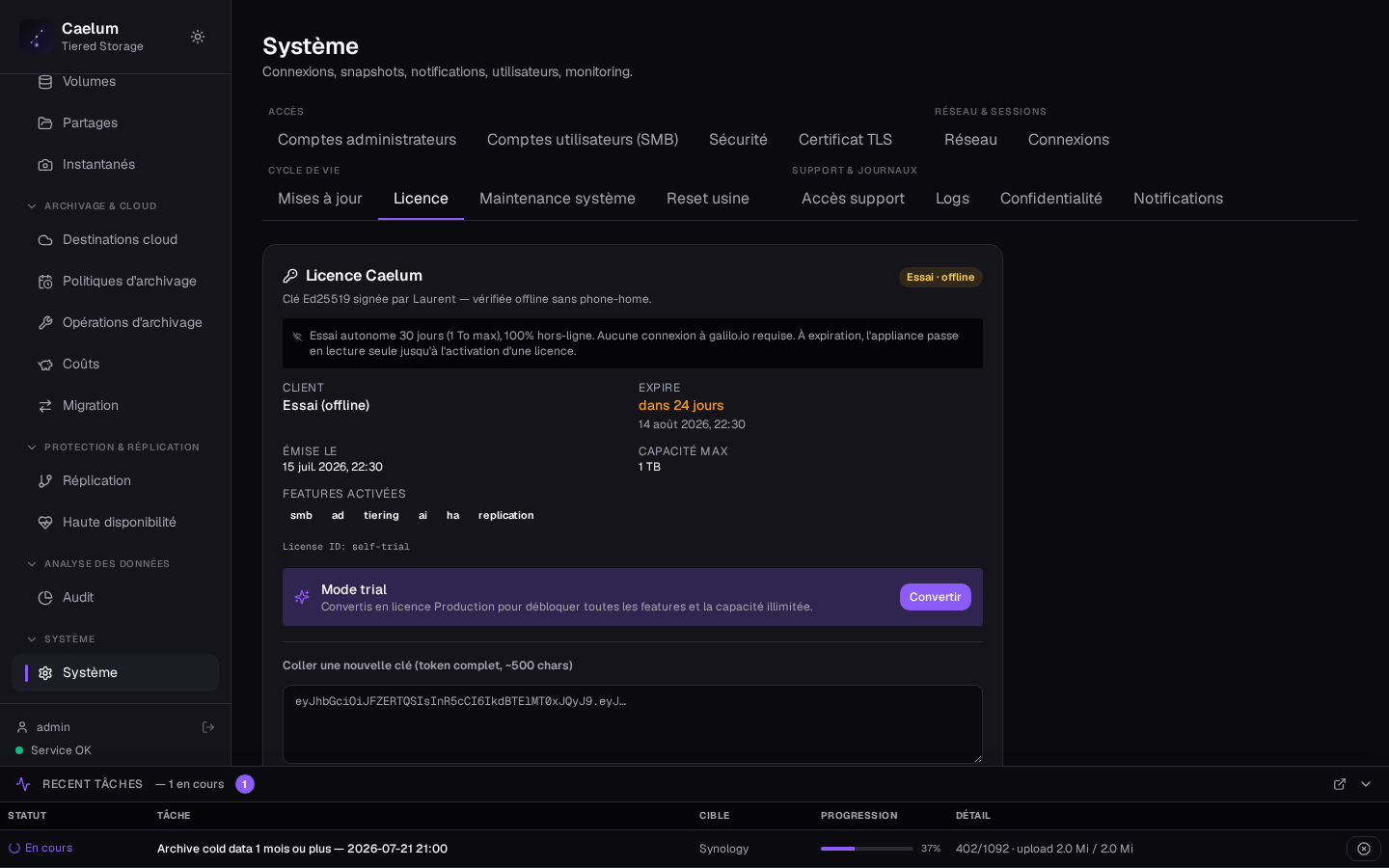
The License tab displays the active license (Ed25519 key verified offline, without phone-home): type (Free / Trial / Production / NFR), customer, issue and expiration dates, maximum capacity and enabled features (smb, ad, tiering, ai, ha, replication). A new key is pasted into the dedicated field then Activate. In Trial mode, Convert redirects to the Production subscription.
Updates and rollback#
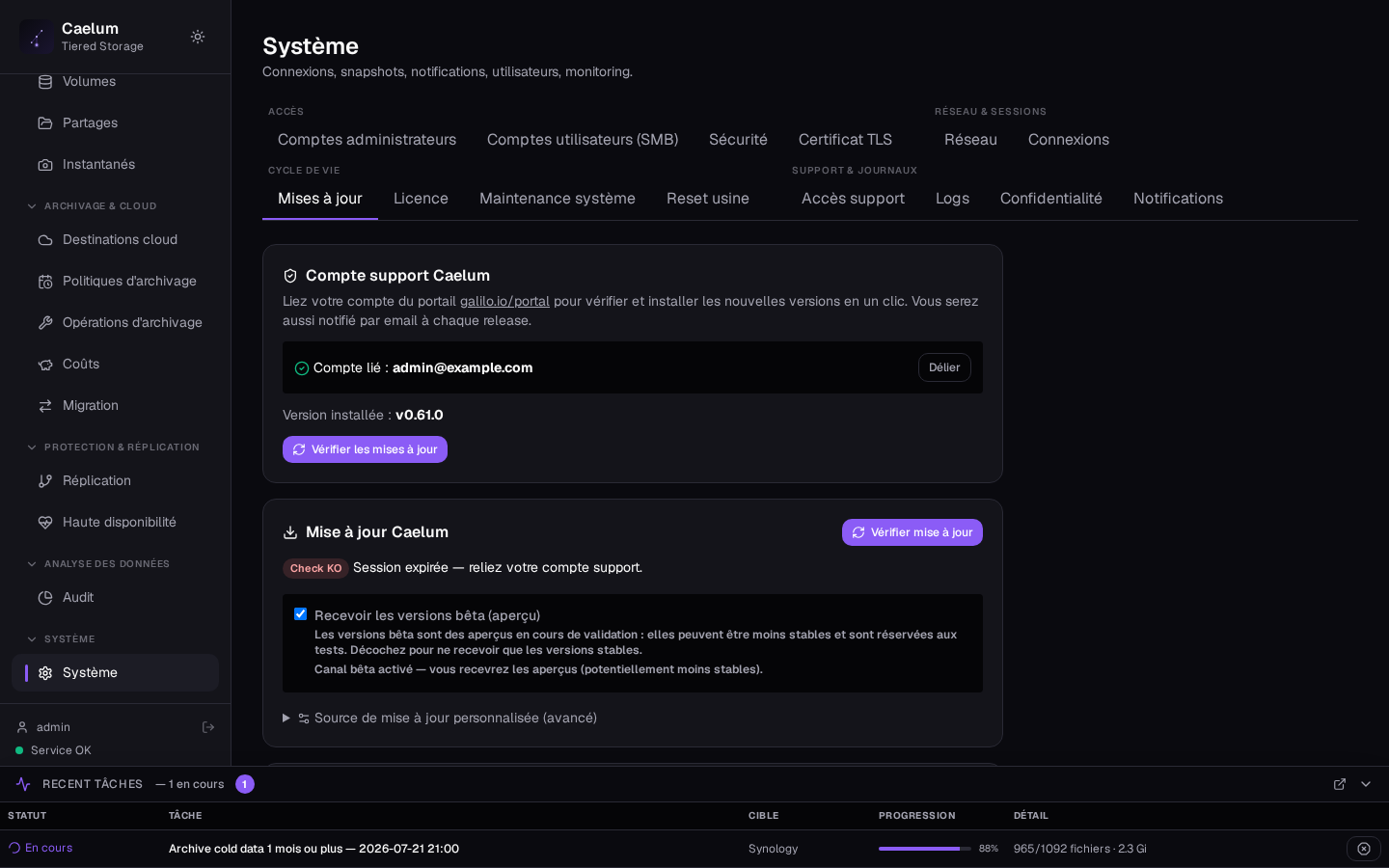
The Updates / Rollback tab manages the software update (data is untouched). Two channels:
- Stable (default, recommended in production): only proven versions.
- Beta (preview): candidate versions, to be reserved for a test environment. Checkbox "Receive beta (preview) versions".
A box already on an -rc version keeps receiving rc's even if the box is unchecked; a stable box is never offered a beta. You can update in one click (via the support account), or install from a file (air-gap, tarball galilo-update-*.tar.gz). A pre-update snapshot is taken automatically and enables a rollback.
Maintenance#
The Maintenance tab generates a support bundle (logs, ZFS state, config — secrets masked as <REDACTED>) to send to support, and runs the S3 purge of objects whose retention has expired (also automatic every night).
Performance#
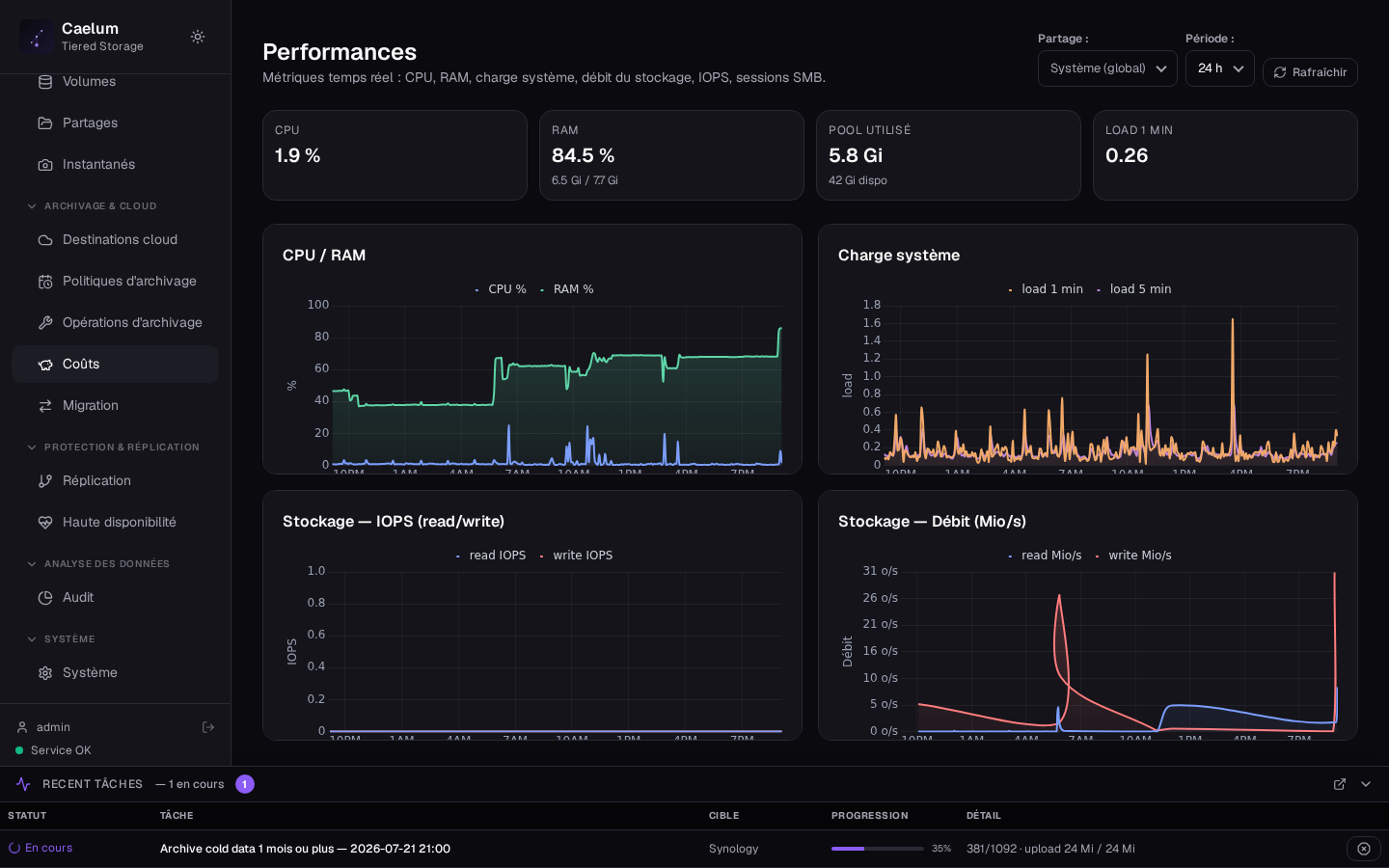
The Performance view displays the appliance's real-time metrics: CPU, RAM, network throughput, IOPS and service observability.
AI assistant#
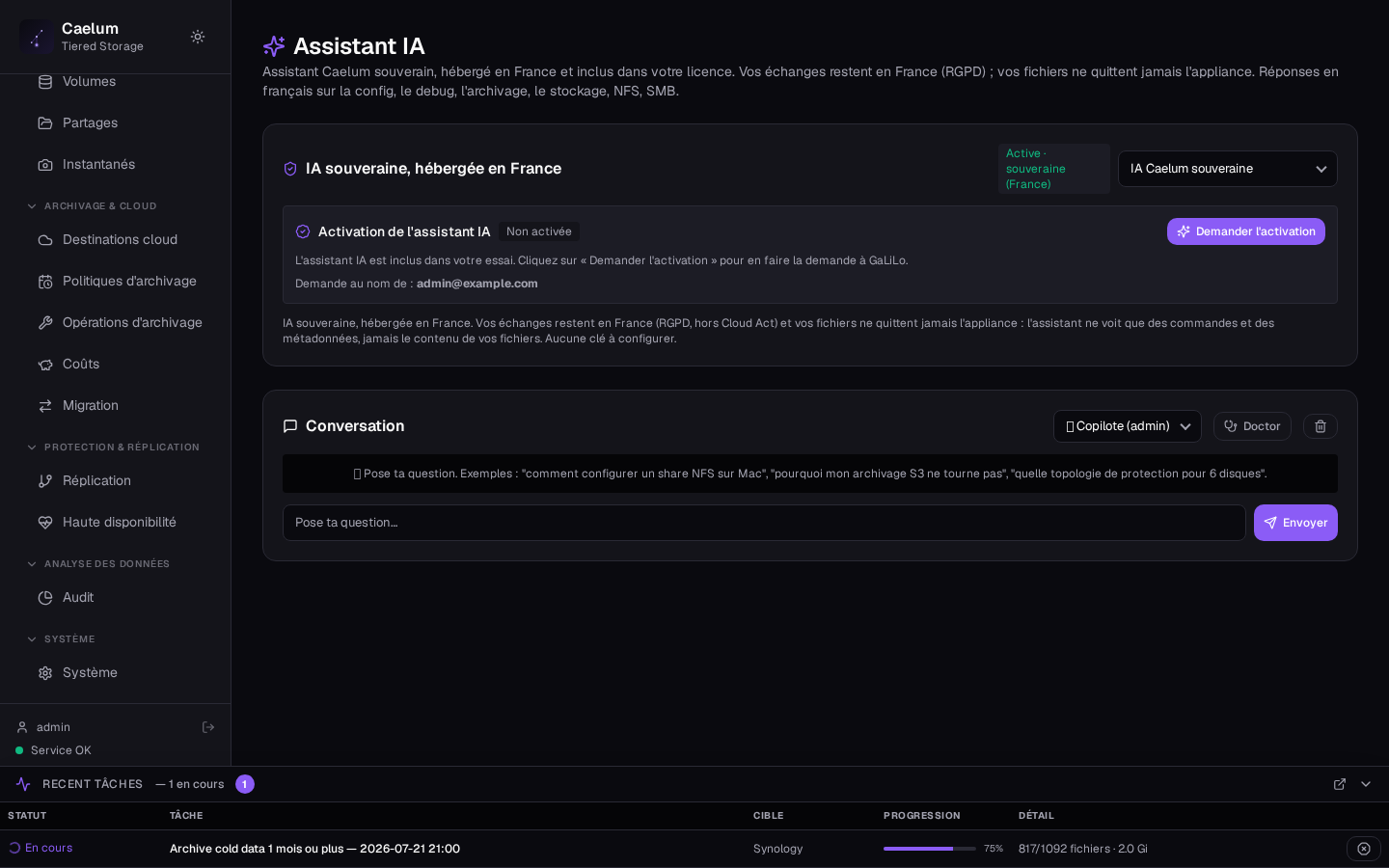
The AI copilot is available at all times as a floating button (it is no longer a menu entry). It is sovereign: hosted in France (GDPR-compliant, outside the scope of the Cloud Act) and enabled by an approval workflow. It never sees the content of your files; it assists with configuration and operation. The former "US cloud" mode has been removed.
See also: the tasks guide (step-by-step procedures), the replication guide and the installation guide.